Reports and dashboards
Get a weekly report by email, share your numbers with your team or a client, and get an alert when something changes.
You don't have to open AnswerOrbit to keep up. Every week we send a report by email, and we'll alert you when something important changes in between. When you want to show your numbers to someone else, you can share a dashboard or a report with a link.
Your weekly report
Once you've been tracking for a whole week, we send your first weekly report. After that, a new one goes out every week. It shows where you stand, what changed since the week before, this week's recommendations, and how the latest work you marked done is doing.
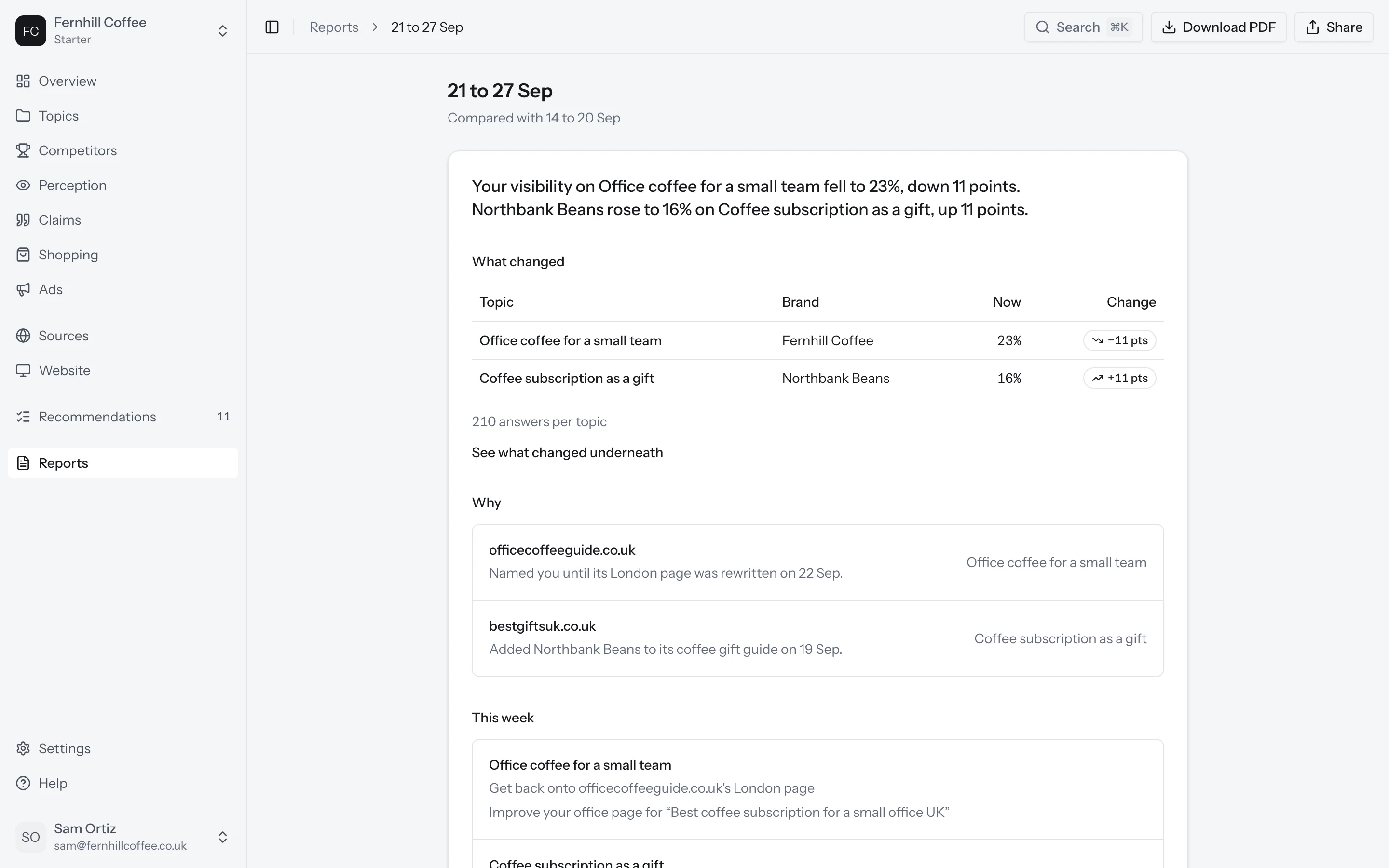
Every report is kept as it was sent. If your numbers are recounted later, for example after you add a competitor, the old reports stay the same. You'll find all of them in Reports in the sidebar.
Change when it arrives and who gets it
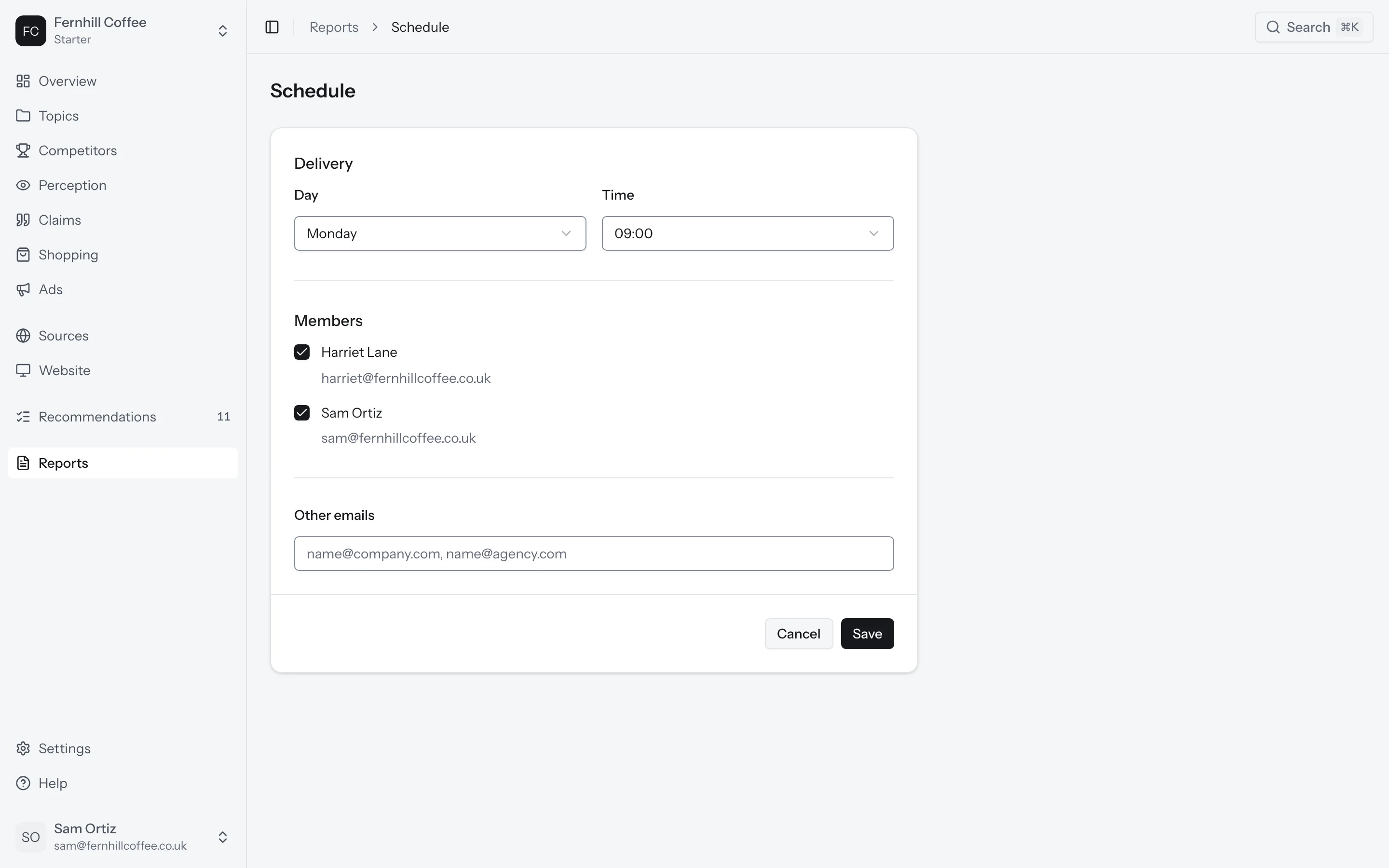
Go to Reports and click Schedule. Pick the day, from Monday to Friday, and the time, from 07:00 to 11:00. Then choose which members get it, and add other email addresses if you like. Click save and you should see Schedule saved.
Until you change it, the report goes to every member on Monday at 07:00.
Send a report to someone
Open a report and click Share. You can Forward by email to anyone, or turn on a link. A link can expire in 7 days, in 30 days or never, and you can add a password of at least 10 characters. You'll see how many times the link has been opened.
If your workspace keeps its reports inside, you can only forward them to its members.
Client reports
On an agency plan, each client also gets a monthly client report, with your agency's name and logo on it. It's prepared on the first working day of the month and sent to the people you choose. You'll find them under Monthly client reports in Reports.
Dashboards
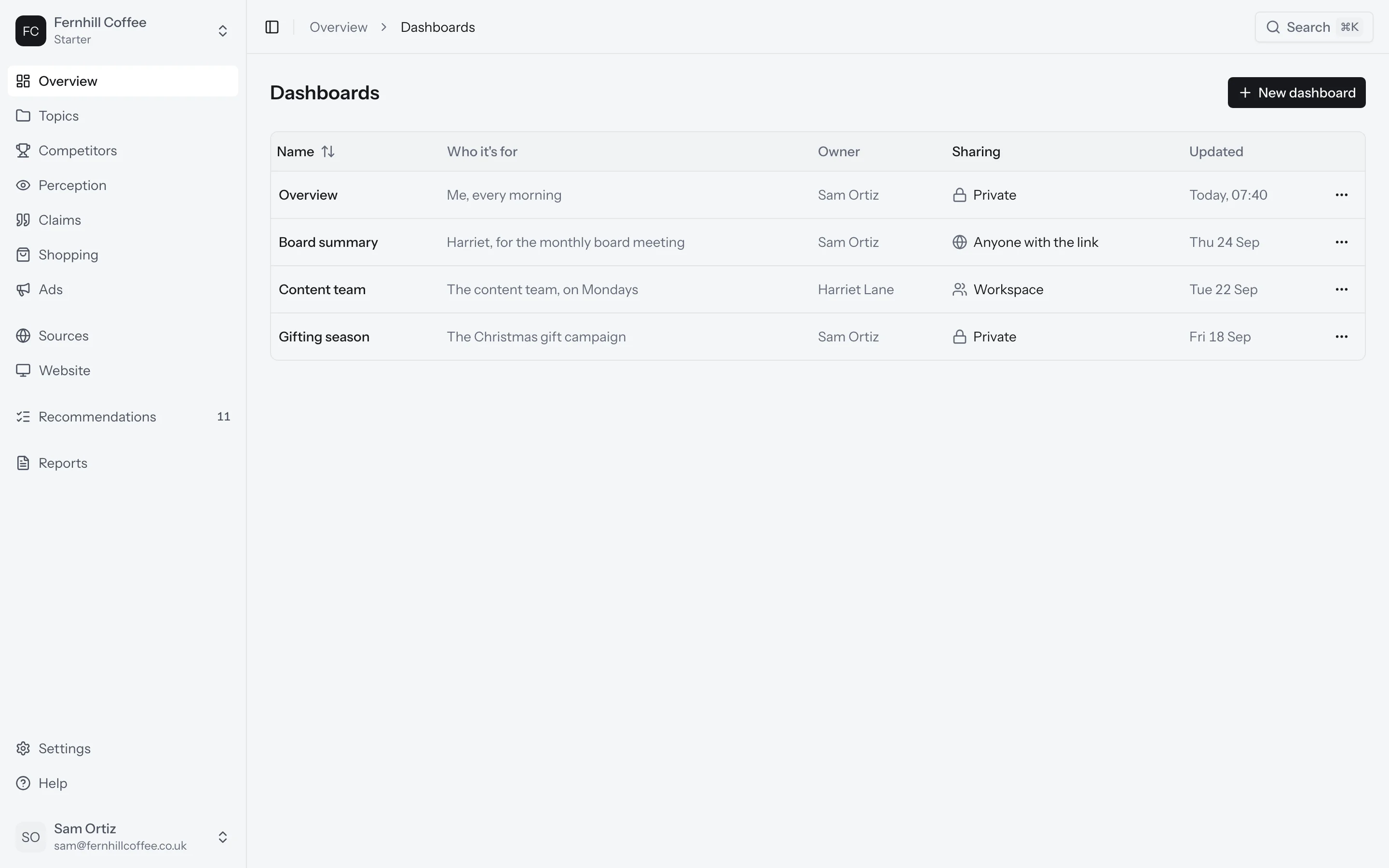
Your Overview is a dashboard, and you can make more. Click the name at the top of the Overview to switch between dashboards, then New dashboard. Start from no charts or from a copy of a dashboard you have, then add the charts you want with Add chart.
Want a dashboard for a meeting, or one for a client? Make one for each. Click All dashboards to see them all, and to rename or delete one. Deleting a dashboard deletes it for everyone it's shared with, and its link stops working.
Share a dashboard
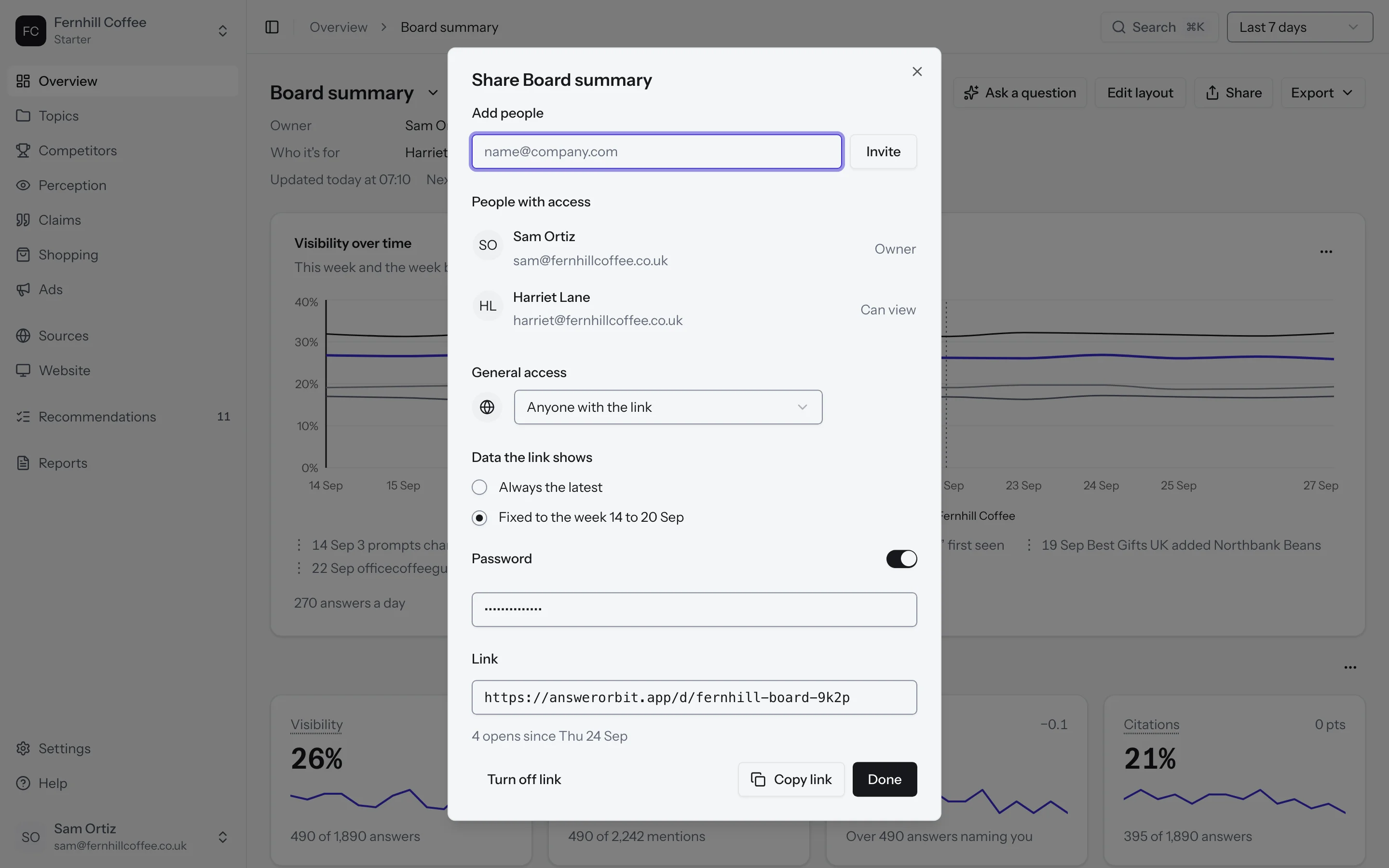
Click Share on any dashboard. You can keep it private, share it with everyone in your workspace, or make a link that anyone can open without an account.
When you make a link, choose what it shows. Always the latest keeps the numbers up to date. Fixed to a week keeps them as they were that week. You can add a password, too.
The link is only shown once, when you make it, so copy it straight away. If you lose it, turn the link off and share again to get a new one. Turn off link stops it working for good.
Export your data
To take a dashboard into a slide deck or a document, click Export and download it as a PDF.
To export the data itself, go to Settings and open Export. Choose the tables you want, such as answers, sources, claims or recommendations, and the period: the last 7 days, the last 28 days, or everything since you started tracking. Each table comes as a CSV file, and the download link works for seven days. Every plan can export everything.
On an agency plan, Export is in each client's own settings.
Alerts
We send an alert when something changes that you'll want to know about before your next weekly report:
- Visibility on a topic falls by at least 5 points, and by more than its usual ups and downs
- Your site starts blocking an AI bot in its robots.txt
- A number crosses a line you've set yourself (see below)
To keep them rare, a brand gets at most three alerts a week. Anything past that goes into the weekly report instead. Alerts are sent on weekdays between 09:00 and 18:00 in your brand's time zone.
Claims that contradict your facts show up in your weekly report. We'll also send them as alerts once our claim checking has passed its accuracy check.
To turn a built-in alert off for a brand, go to Settings and open Alerts.
Set your own alerts
Want to know as soon as a number crosses a line? In Alerts, click New alert. Pick a metric (visibility, share of voice or citations), a topic or all topics, whether it Falls below or Rises above, and the value. We'll alert you when it happens.
Choose how you get them
Each person chooses how they get alerts. Go to Settings and open Notifications. For each kind of message, you can choose who gets it, which channel it goes to, and how often: as it happens, as a daily digest, or weekly.
Slack
To get your weekly report and alerts in Slack, go to Settings, open Connections and click Connect Slack. Then choose a channel. Nothing goes to Slack until you've chosen one.
What's next?
- Find out what's on the Overview
- Act on this week's set in Recommendations