Recommendations
What to change next to be named more often, how to work through it, and how to see whether it worked.
Recommendations tells you what to change next to be named more often, and every recommendation comes with the answers and pages behind it.
We work out your recommendations from your last week of answers, every Monday at 06:00 in your brand's time zone. A recommendation is only made when there's evidence for it in your answers. For a new brand, the first set arrives on the first Monday after setup. Until then, the page shows the date it's due.
What you'll find
Go to Recommendations in the sidebar. You should see a list ranked by expected effect, from Highest to Lowest. Each row shows what to do, the topic, and how many answers or pages back it up.
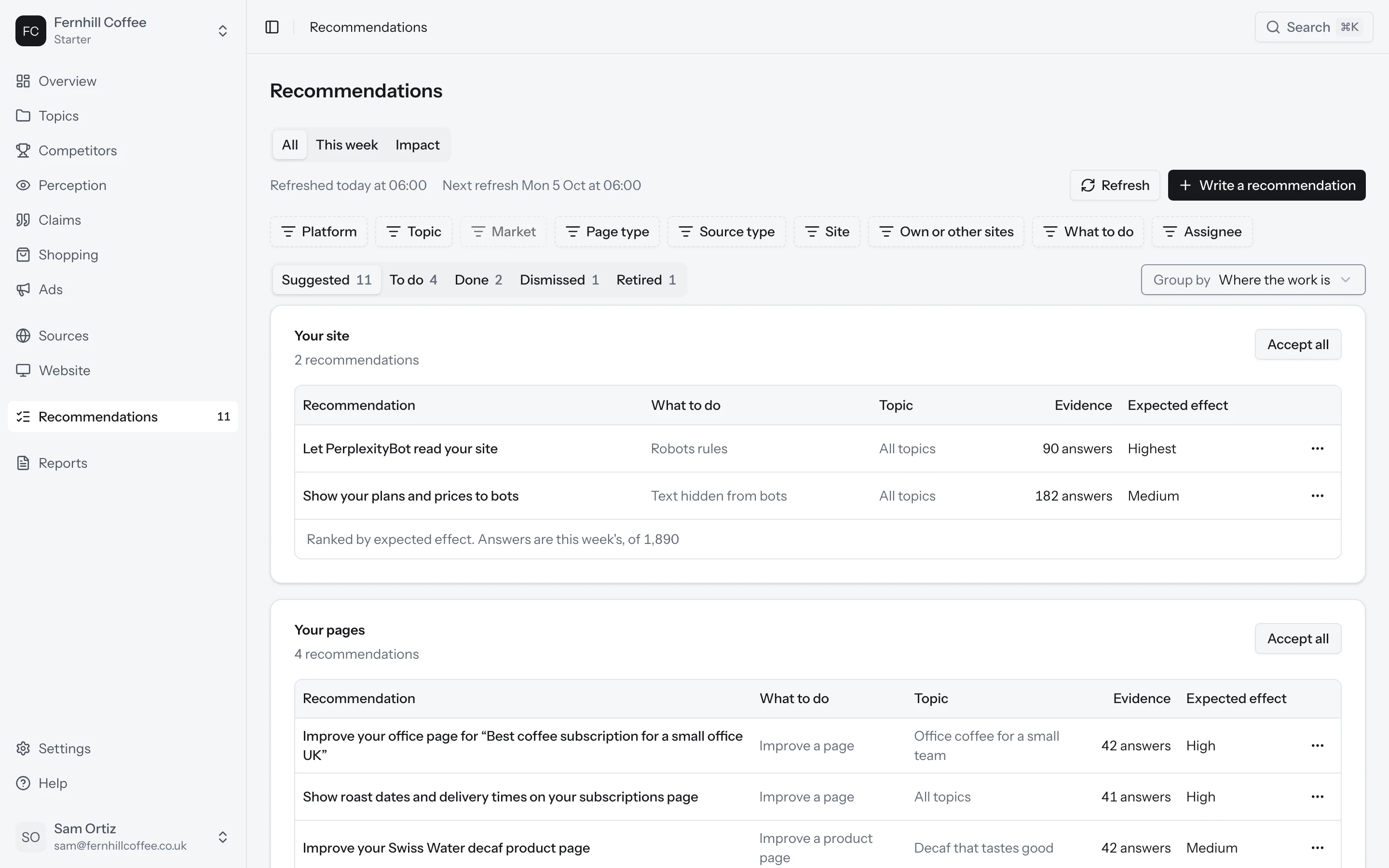
Some recommendations are about your own website:
- Let a blocked AI bot read your site
- Show text that bots can't see on a page
- Fix pages on your site that return an error to bots
- Correct what one of your pages says
- Improve a page for a prompt
- Create a page on a topic
- Improve a product page
Others are about other people's websites and the platforms:
- Ask a site to correct what it says about you
- Get onto a page that names your competitors
- List your brand in a directory
- Grow your reviews on a review site
- Answer a forum thread
- Report answers that repeat a wrong claim to the platform
We never recommend reviews you arrange or reward, posts that hide who you are, or links you pay or trade for.
Want to group the list another way? Use Group by to sort it by where the work is, by what to do, by your own sites against other sites, or by topic.
Work through a recommendation
Click a recommendation to open it. You'll see why it matters, the steps to take, and the evidence: the answers and pages it's based on.
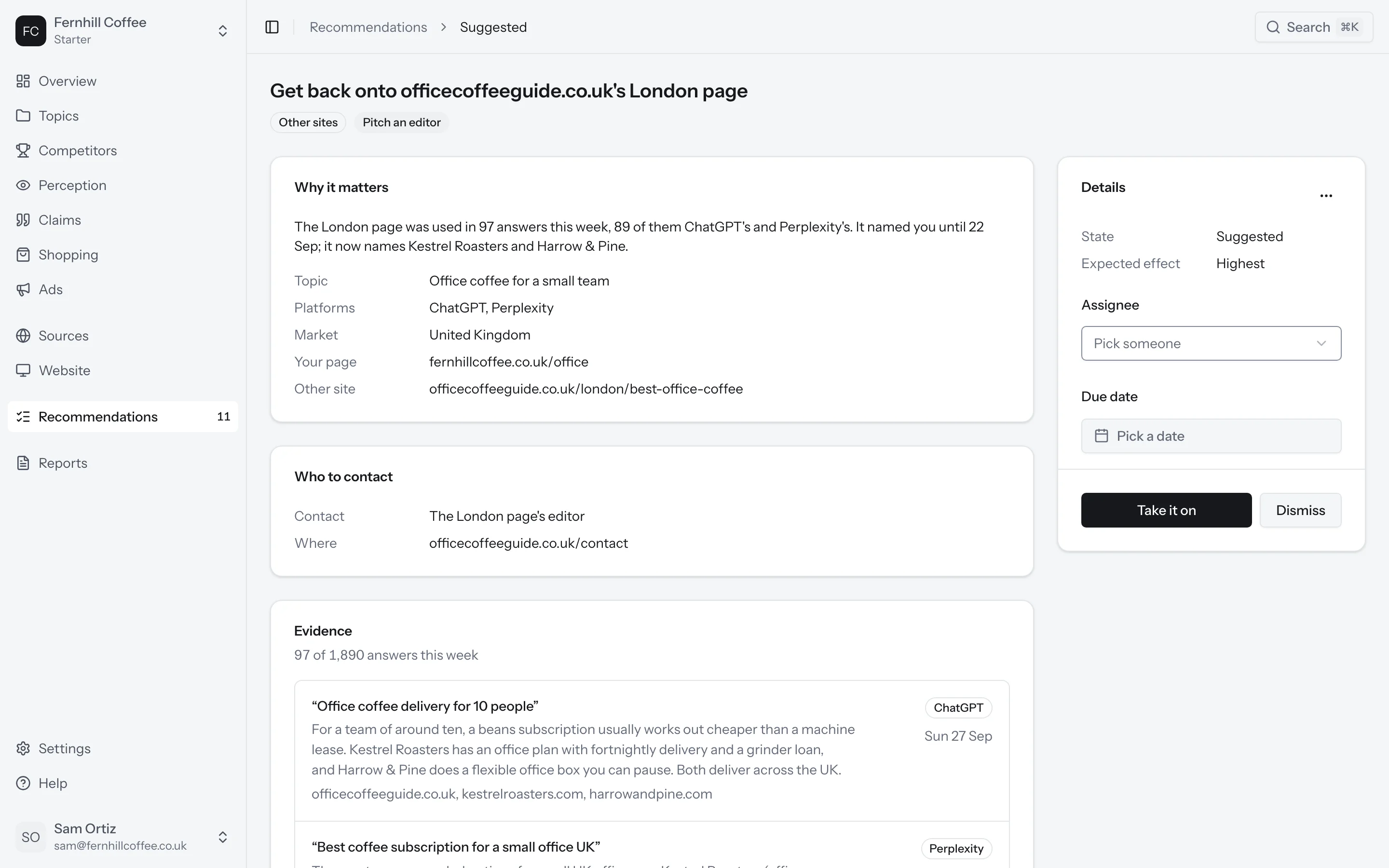
Ready to do it? Click Take it on. It leaves Suggested and appears in To do. You can Assign it to someone on your team, who gets an email, and give it a due date. Tick off the steps as you go.
When you're done, click Mark done. It moves to Done, and we start measuring whether it worked (see Did it work? below).
Changed your mind? Click Reopen on a done recommendation and it goes back into To do.
Send the evidence
Some recommendations ask you to contact someone else, like the editor of a page that says something wrong about you. These come with an evidence pack: the claim, your fact, the page behind it and how often the answers repeat it.
Click Copy evidence pack to paste it into an email, or download it. The recommendation also tells you who to contact and where.
Dismiss one
If a recommendation isn't for you, click Dismiss. You can pick a reason, such as Not relevant, Already done or The evidence is wrong, and add a note. Dismissed recommendations stay in the Dismissed tab, and you can Restore one at any time.
Write your own
Have something in mind that we didn't suggest? Click Write a recommendation. Give it a title, a description and your steps, one per line. You can also pick the page it's about and its topic. It works like any other recommendation from then on.
Retired recommendations
When the evidence for a recommendation goes away, for example when no answer this week supports it any more, we move it to Retired with a note saying why. If the evidence comes back, the recommendation comes back too, where you left it.
This week
The This week tab picks the topics where you have the most to gain right now: the ones where you're furthest behind the leading competitor, or where you've fallen furthest since the week before. You'll see up to three topics, each with up to two recommendations to work on.
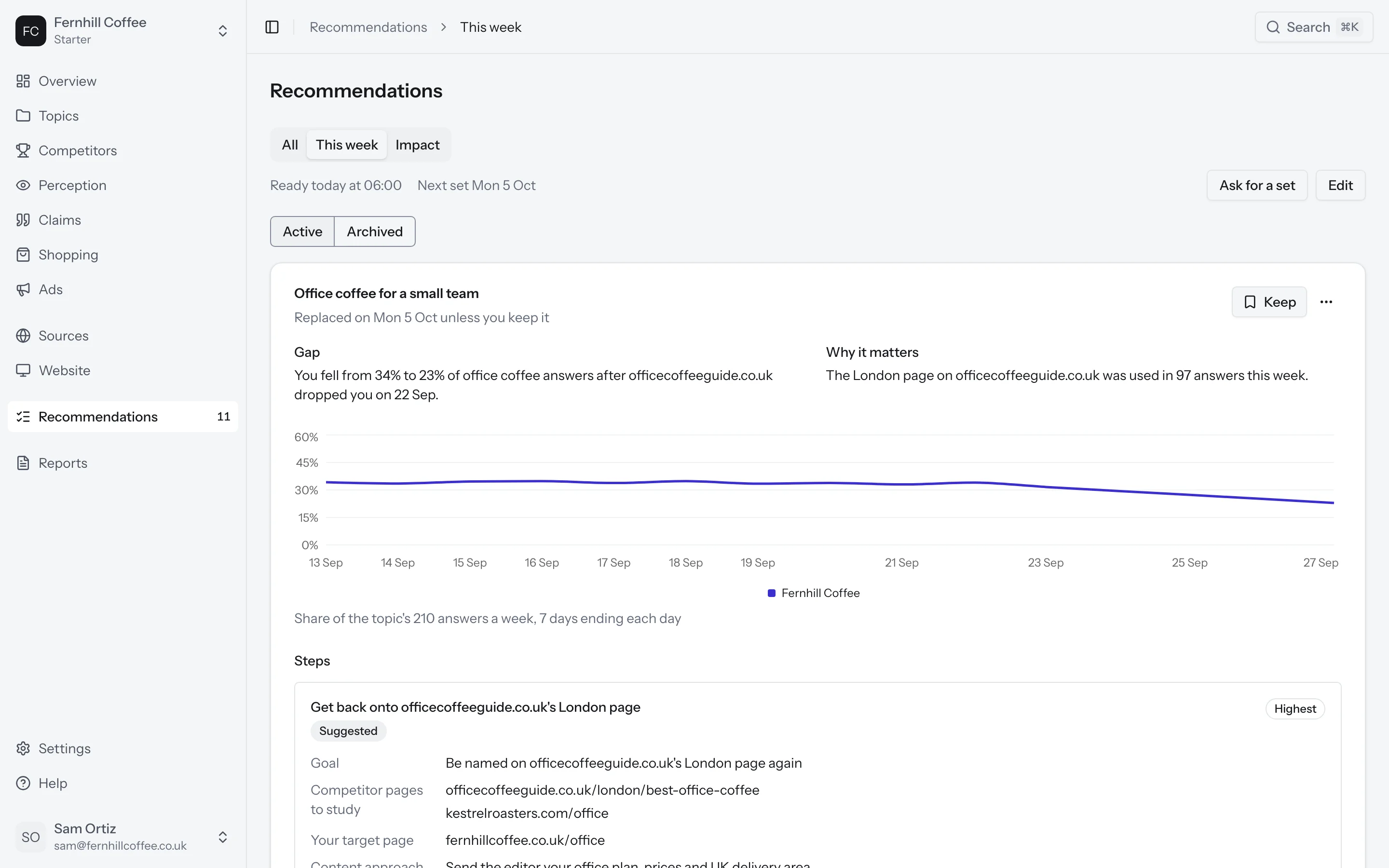
The set is replaced every Monday. To carry a topic over to next week, click Keep. Is there a topic you want to work on that isn't in the set? Click Ask for a set, pick the topic, and we'll build one for it straight away.
Did it work?
When you mark a recommendation done, we take two readings of its numbers: one two weeks later and one six weeks later. You'll find them in the Impact tab, next to the date you did the work.
The first reading is an early look. The second shows whether the change lasted.
Before and after a date
Made a change that wasn't a recommendation, like a new page or a press mention? Open Before and after a date, pick the date, and add the pages involved if you like. You'll see your numbers before and after that date, platform by platform.
Test group
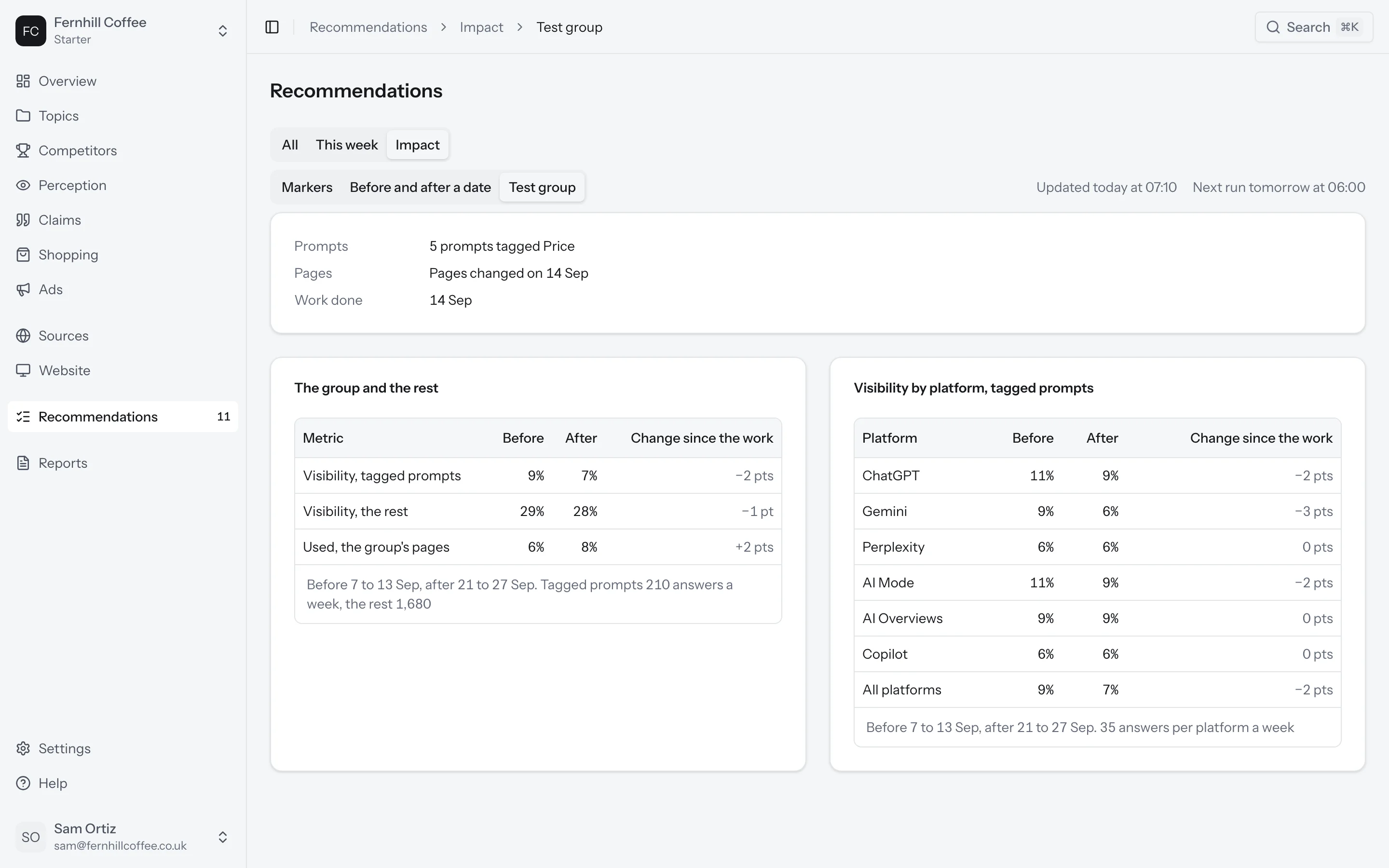
To see whether a change helped one part of your prompts and not the rest, make a test group. Click New test group, choose a tag or a source group, and enter the day you did the work. We compare the visibility of that group's prompts with the rest of your prompts from that day on.
Page checks
Want to know why one of your pages isn't used for a prompt? Open Page checks, choose the page and the prompt, and click Check the page. We run eight checks:
- AI crawlers may read it
- Shown without scripts
- A title and headings
- Structured data
- A visible date
- Fast on phones
- The prompt in a heading
- An opening that answers
Each check says whether the page passes, and how to fix it if not. We also run the same checks on up to five pages the platforms cite for that prompt, so you can see how your page compares.
You can ask for up to 20 page checks a day.
What's next?
- See which sites name your competitors and not you in Sources
- Learn when we mark a change in How we count