Topics and prompts
Add the questions we ask for you, group them into topics, and keep them tidy as your brand changes.
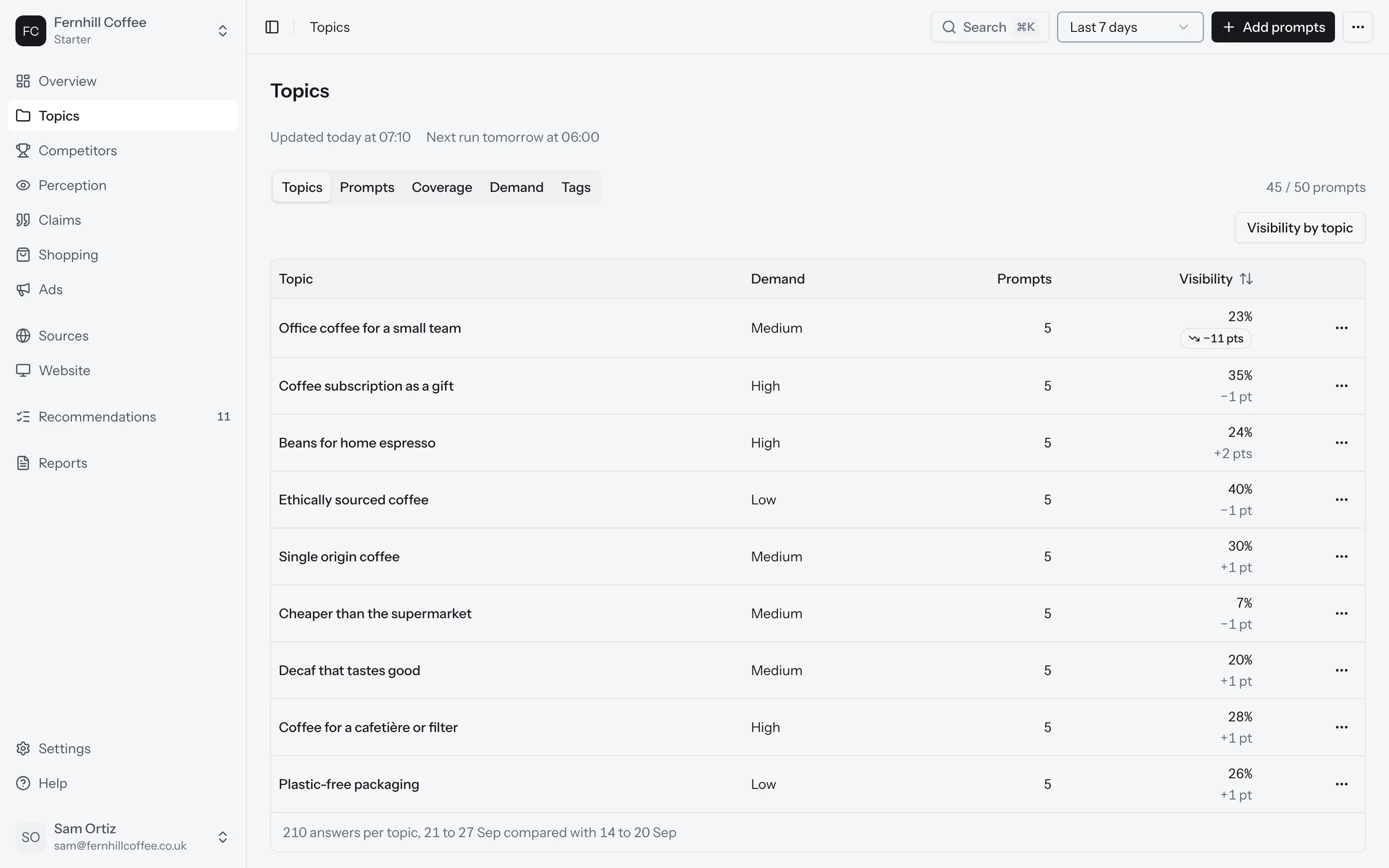
Your prompts are the questions we ask the AI platforms for you every day. Topics group them by subject, such as coffee subscriptions or office coffee, so you can see which subjects you're named for and which you're not.
Go to Topics in the sidebar to see them. There are five tabs: Topics, Prompts, Coverage, Demand and Tags.
Add a topic
Click Add topic and give it a name. A good topic is a need your customers ask about. You'll see a few suggested prompts for it straight away, which you can keep or skip.
Add prompts
There are four ways to add prompts. Use whichever suits you.
Type them in
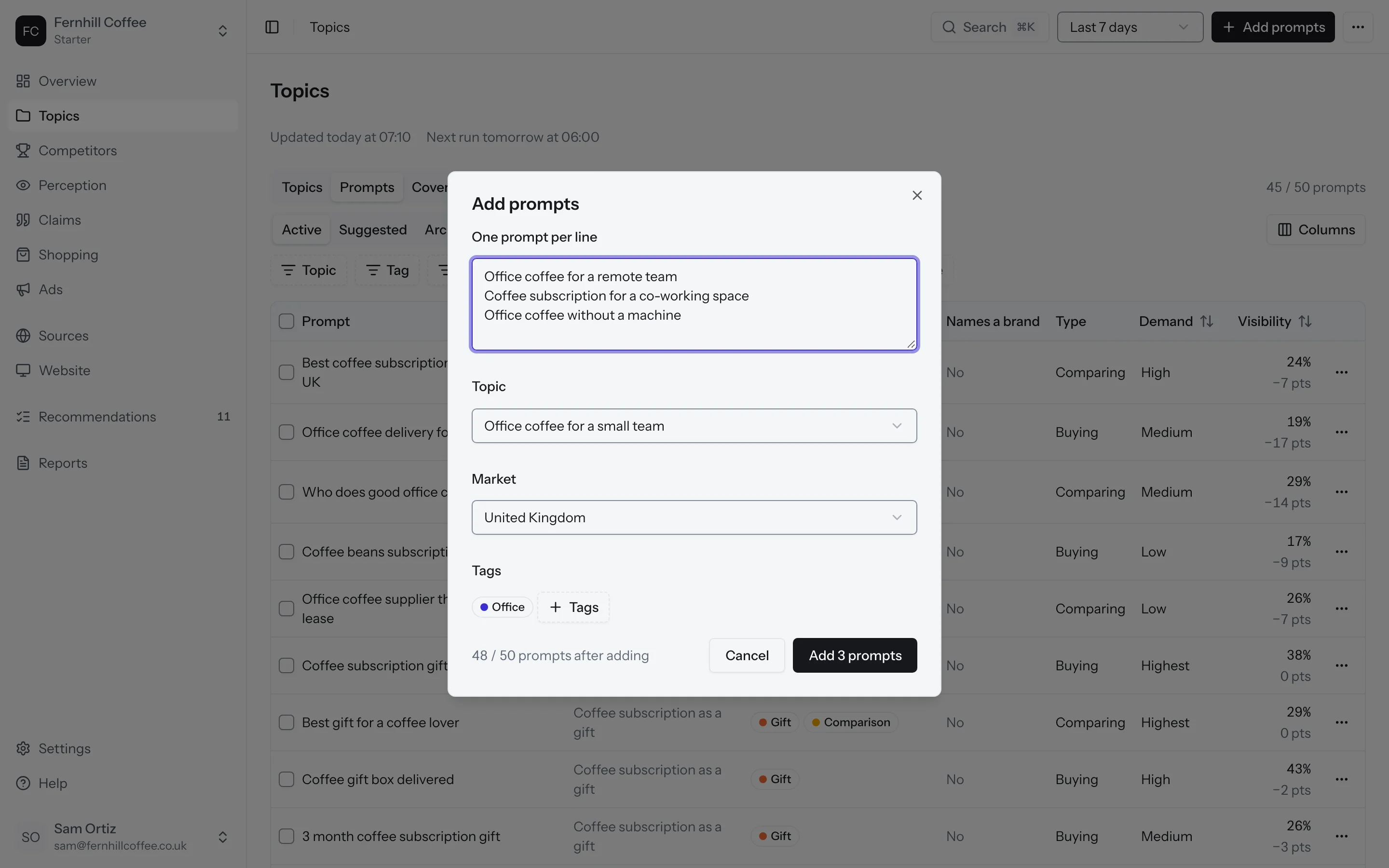
Click Add prompts. Type one prompt per line, pick the topic and the market, and add tags if you use them. Each prompt can be up to 300 characters. Before you save, you'll see how many prompts you'll be using out of your plan.
Pick from suggestions
On the Prompts tab, open Suggested. We suggest prompts from your profile, from the answers you've collected so far, and from what people ask. Click Track to start tracking one, or Dismiss to get rid of it. A new suggestion takes its place.
Want suggestions to fill a gap? Click the menu next to Add prompts and choose Generate prompts. Pick the markets and topics, how many prompts you want, and the mix of learning, comparing and buying questions. You'll see a preview before anything is added.
Start from what people ask
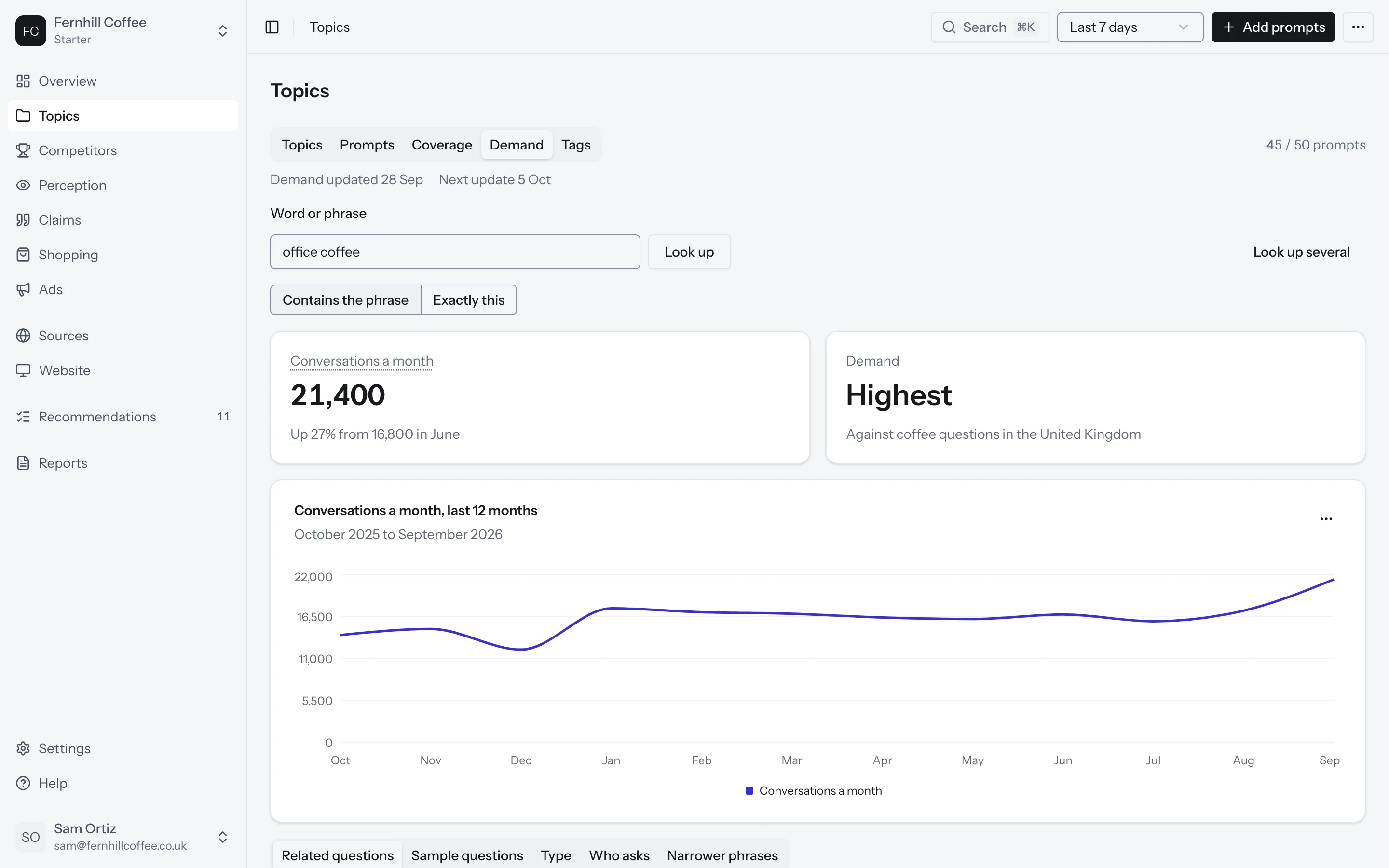
The Demand tab shows how many conversations a month use a word or phrase on the AI platforms. Type a word or phrase and click Look up. You'll see an estimate of conversations a month, how that changed over the last 12 months, and the related questions people ask. Click Track next to any question to add it as a prompt.
Demand is an estimate from a panel of conversations and searches on the six platforms, and it can be up to two weeks behind. Each prompt shows its demand as one of five levels, from Lowest to Highest.
Import a file
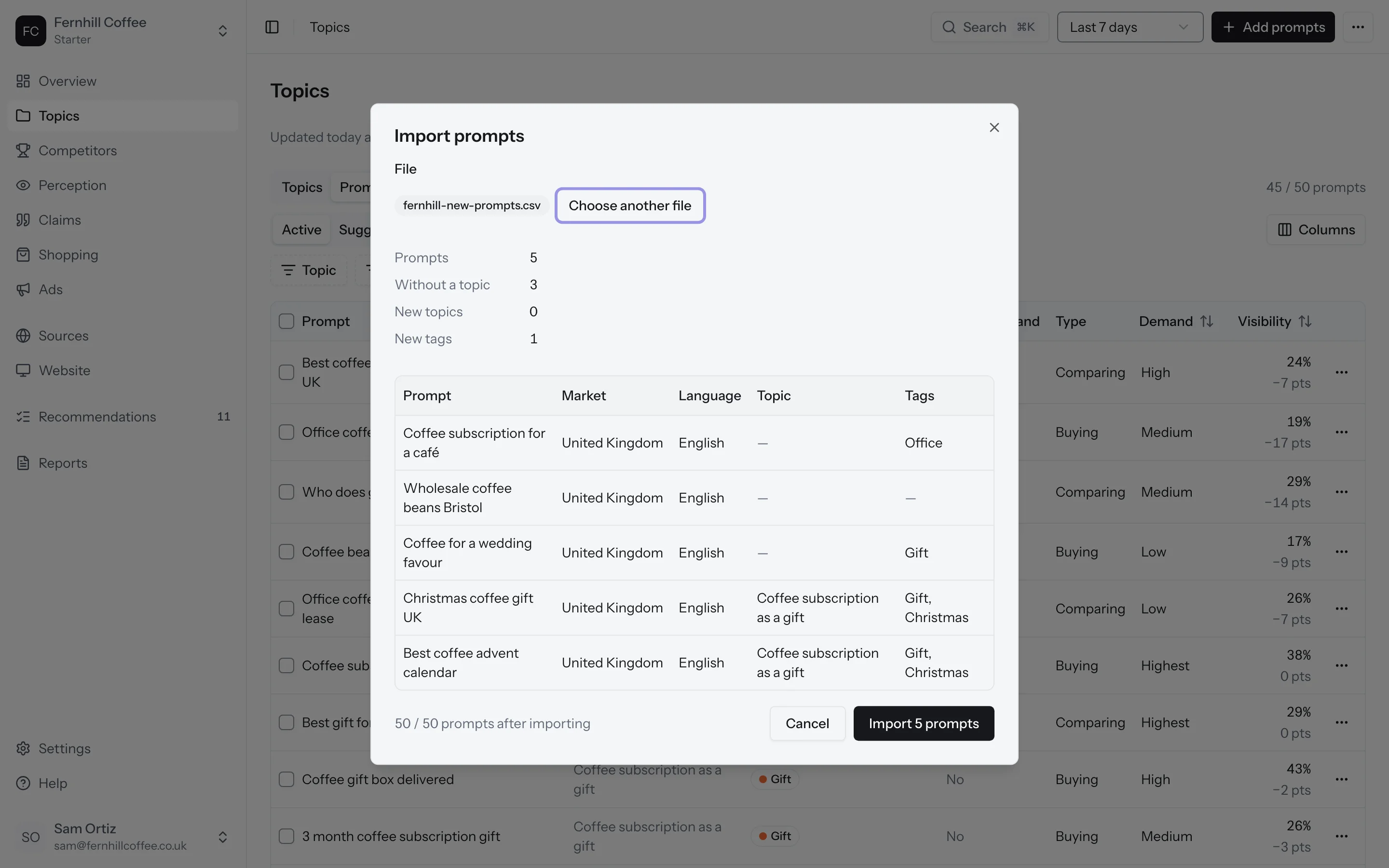
Got your prompts in a spreadsheet already? Click the menu next to Add prompts and choose Import from a file. Click Download the template first. It has five columns: prompt, market, language, topic and tags.
Then drop your CSV or JSON file in. You'll see a preview of what will be added, including any new topics and tags, and nothing changes until you confirm the import. A file can hold up to 2,000 rows.
Prompts and your plan
Each prompt in each market counts once toward your plan. If you track the same question in two markets, that's two prompts. The same goes for audiences: a prompt you also run as an audience counts again.
Suggested prompts don't count, and neither do archived ones.
When you've used all your prompts, you can archive some to make room, add 50 more prompts to your plan, or upgrade. See our pricing page for what each plan holds.
Edit, move and archive prompts
Select one or more prompts on the Prompts tab to assign a topic or tags, run them as an audience, or archive them.
Be careful when you change a prompt's words. New words make it a new prompt, so its history starts again from today. The old prompt is archived with its history, so nothing is lost.
When you move prompts to another topic, we recount their answers so the topic's numbers include them.
Archiving a topic keeps its history, and its prompts stop counting toward your plan. Deleting prompts is different: their answers and history go with them, and it can't be undone.
Tags
Tags let you slice your prompts in ways topics don't, such as price or comparison. A prompt can have several tags. Group your tags and give them colours on the Tags tab, then filter your numbers by tag.
Markets and audiences
A market is the country your prompts are asked from, in its language. You can also pick a city, and in the US a state, for the platforms that ask from them. How many markets you can track depends on your plan.
An audience describes a kind of customer: their job title, seniority, company size, industry, age range, what they want and what bothers them. When you run a prompt as an audience, we ask it again as that person would, and it counts again toward your plan.
You add markets and audiences in your brand's settings. See Settings.
Inside a topic
Click a topic to open it. You'll see your visibility on that topic over time, and these tabs:
- Prompts: each prompt in the topic, with its visibility and answers
- By platform: how you do on each platform for this topic
- Answers: every answer to the topic's prompts
- Sources: the pages the platforms read for this topic
- Competitors: the brands named for this topic
Coverage
The Coverage tab checks your set of prompts as a whole. It lists the top fixes, like questions people ask that you don't track yet, prompts with the lowest demand, or duplicates. Click Review next to a fix to deal with it.
What's next?
- See how you're doing on each topic on the Overview
- Read the answers to your prompts in Answers
- Add markets and audiences in Settings