Settings
Your brand's names, markets and audiences, your team and billing, and the tools you connect.
Go to Settings in the sidebar. Settings has three parts: your own account, your workspace, and the brand you're looking at.
Your brand
Under your brand's name you'll find seven tabs: Profile, Names, Channels, Product lines, Markets, Audiences and Platforms.
Profile
Your brand's name, website and what you do. We use this to suggest topics and prompts. When you save a change, you'll see how many new suggestions it made, with a link to review them.
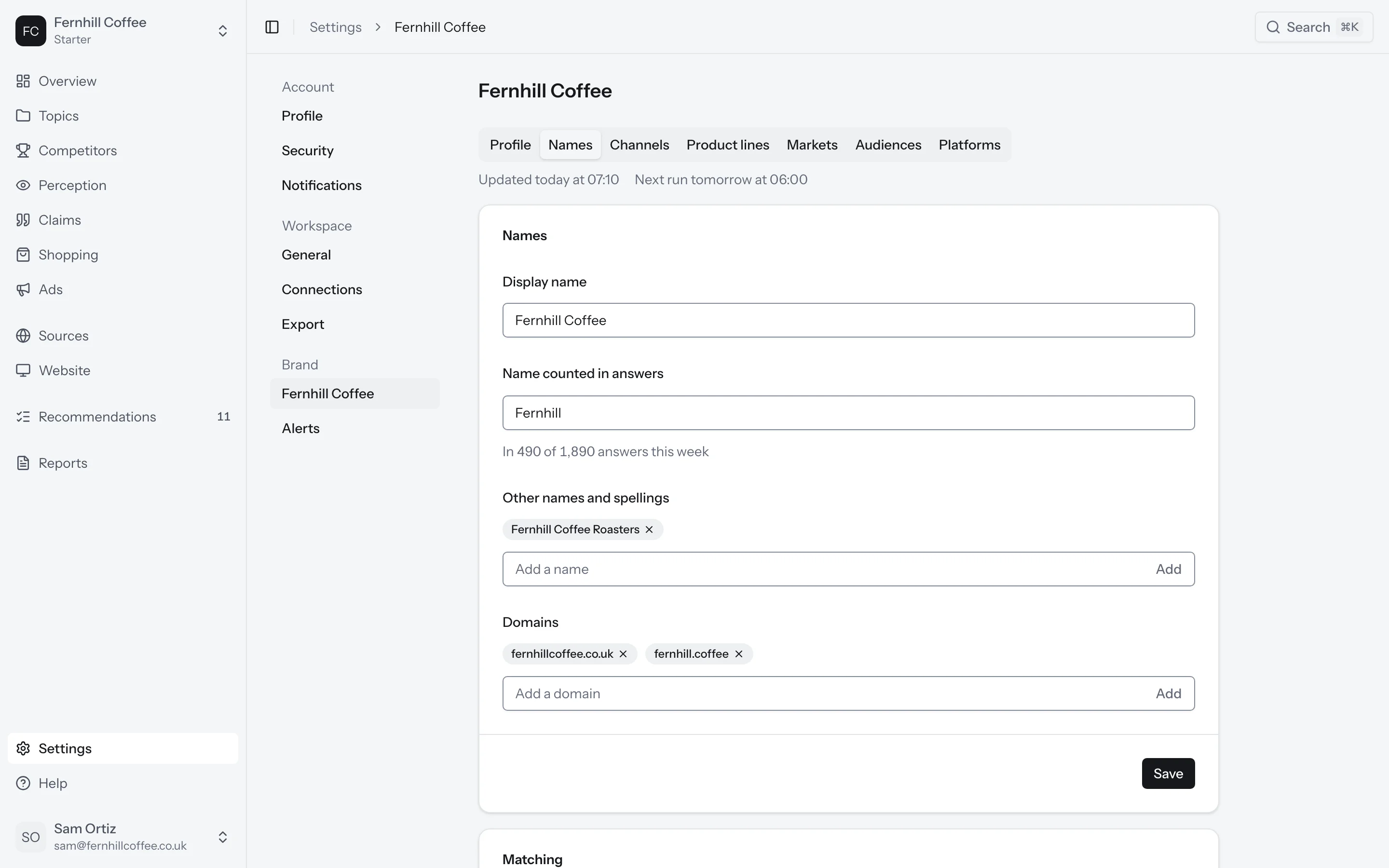
Names
These are the names that count as you in an answer. Add every name and spelling your customers use, and your domains.
If your name is a common word, or another business shares it, open Matching. You can match upper and lower case exactly, or only count your name in answers about certain words. Under Possibly another business you'll see answers that might mean someone else with your name. Mark each one It's you or Not you.
Changing your names recounts every answer you've collected so far. Your numbers update when the recount finishes.
Channels and product lines
Channels are your social accounts, like Instagram, LinkedIn or YouTube. Click Add channel and add each one with its address.
Product lines let you track parts of your brand separately, each with its own names. You can merge a product line back into your brand at any time, which recounts your answers.
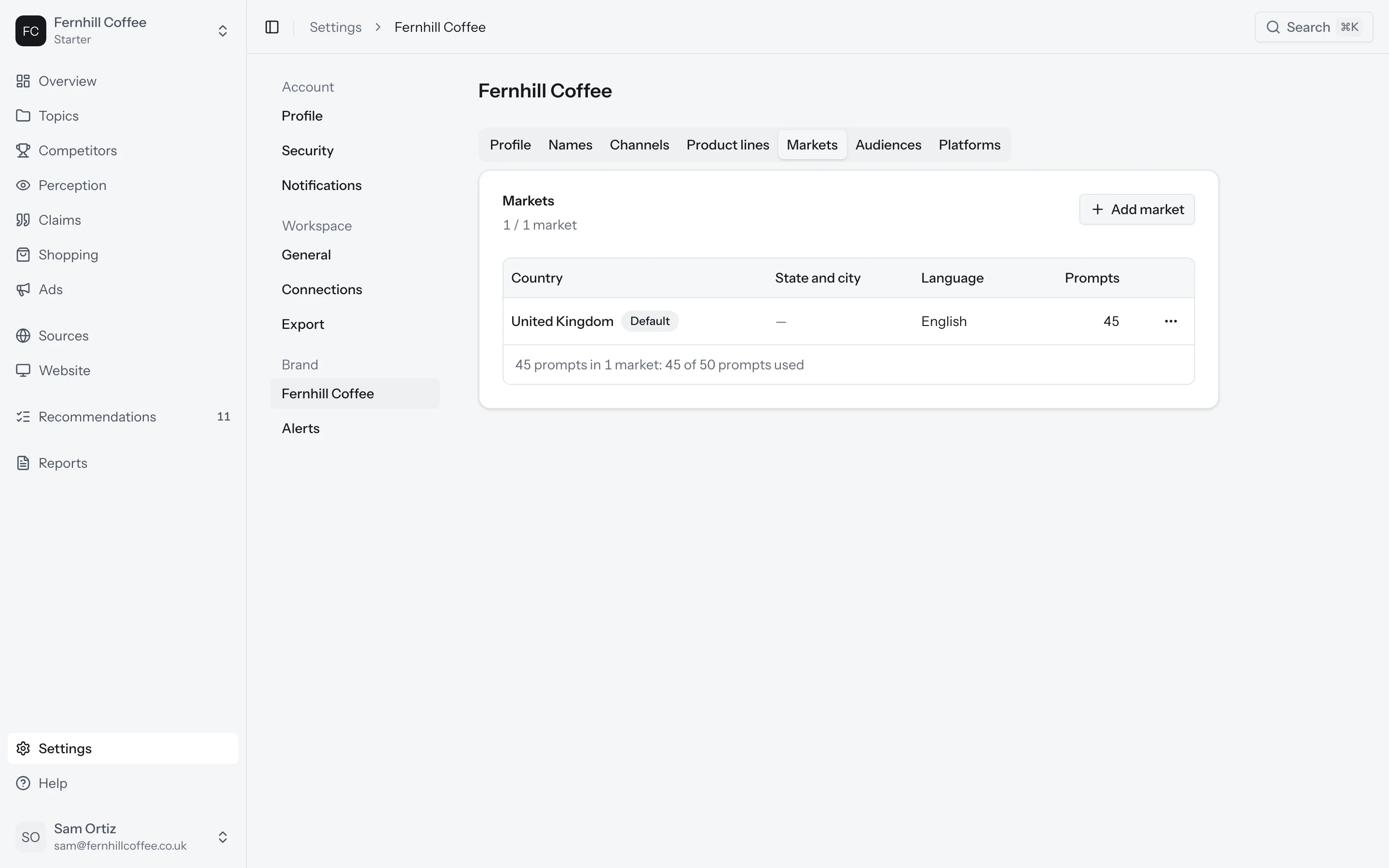
Markets
A market is a country your prompts are asked from, in its language. Click Add market, pick the country and language, and choose which prompts to run there. You can also pick a city, and in the US a state, for the platforms that ask from them.
Each prompt you run in a market counts once toward your plan, so a prompt in two markets counts twice. You'll see how many prompts you'll use before you save. One market is your default, where new prompts are asked unless you pick another.
Audiences
An audience describes a kind of customer: job title, seniority, company size, industry, age range, motivations and pain points. Click Add audience, describe them, and choose the prompts to run as them. Each prompt you run as an audience counts again toward your plan.
If you delete an audience, its prompts are archived and stop running. This can't be undone.
Platforms
Every plan includes all six platforms. This tab shows how each one is answering this week, how we ask it, and when it last changed how it answers. You can also add a platform beyond the six for a monthly price. Only the workspace owner can do that, but you can send them a request from here.
Your workspace
Members
Click Invite and enter one or more email addresses, separated by commas. Choose their access, then click Send invites. You can invite up to 50 people at once.
There are two built-in levels of access. An Owner can do everything, including billing. A Member can do everything except billing. A workspace always needs at least one owner.
If you want to limit who can join, add your company's domains in General. Only people with those email domains can join as members.
Access
Need something in between? On the Access tab, click New access level and choose what it allows: seeing the numbers and answers, editing prompts and topics, editing competitors, editing facts, managing recommendations, sharing reports and dashboards, managing connections, inviting and removing members, and managing billing.
Billing
The Billing tab shows your plan, its price and when it renews, and how many brands, prompts and markets you're using. Click Change plan to move up or down, or switch between monthly and yearly billing. You can also add 50 more prompts or one more brand without changing plans.
Only owners can change billing.
Activity log, alerts and export
The Activity log shows who changed what in your workspace, and when: sign-ins, members, access, setup, connections and sharing.
Alerts sends you an email or a Slack message when something changes. There are built-in alerts, and you can add your own. For example, tell us to alert you when your visibility on a topic falls below a number you choose.
Export downloads your answers, prompts, brands, domains, claims and recommendations as CSV files. We'll email you a link when the export is ready.
Connections
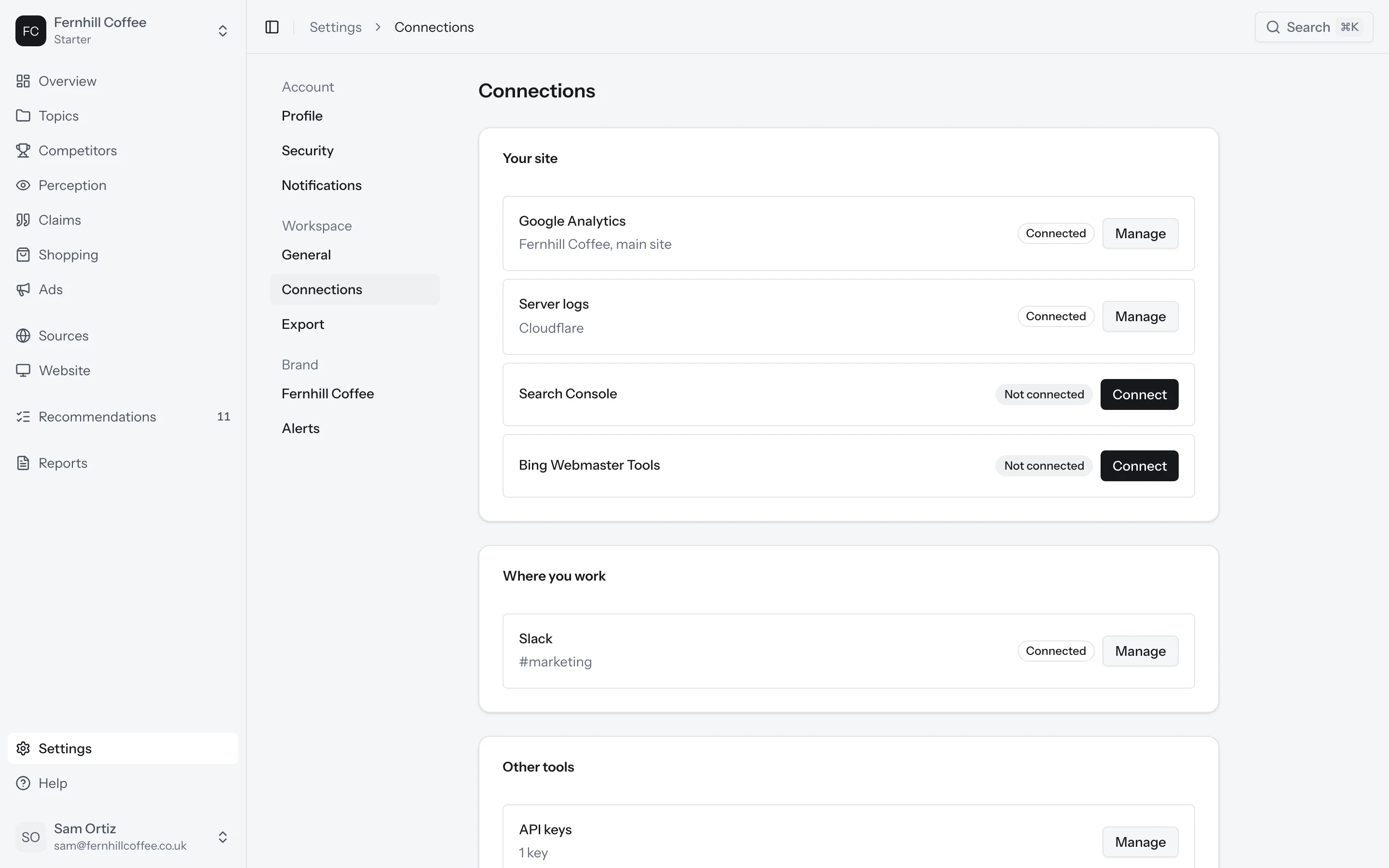
Connect your other tools under Connections. Disconnecting a tool stops its updates and keeps what it already brought in.
- Google Analytics brings in the visits AI sends to each page of your site, by assistant, country and device.
- Server logs show which AI bots read your site and how often.
- Google Ads puts the keywords you bid on next to your visibility on each topic.
- Merchant Center brings in your product catalogue for shopping answers.
- Slack sends your notifications to a Slack channel.
- Search Console and Bing Webmaster Tools connect today, but Google and Bing don't share their AI reports with other tools yet.
To read your numbers from your own tools, see The API. To ask Claude, ChatGPT or Cursor about your numbers, see Connect your assistant.
What's next?
- Add and organise your prompts in Topics and prompts
- Choose who you compare yourself with in Competitors