Connect your assistant
Ask Claude, ChatGPT or Cursor about your numbers. Included on every plan.
Would you rather ask "How did we do on ChatGPT this week?" than open a dashboard? Connect your AI assistant to AnswerOrbit and it can read your numbers for you. It works with Claude, ChatGPT and Cursor, and it's included on every plan.
Find the server address
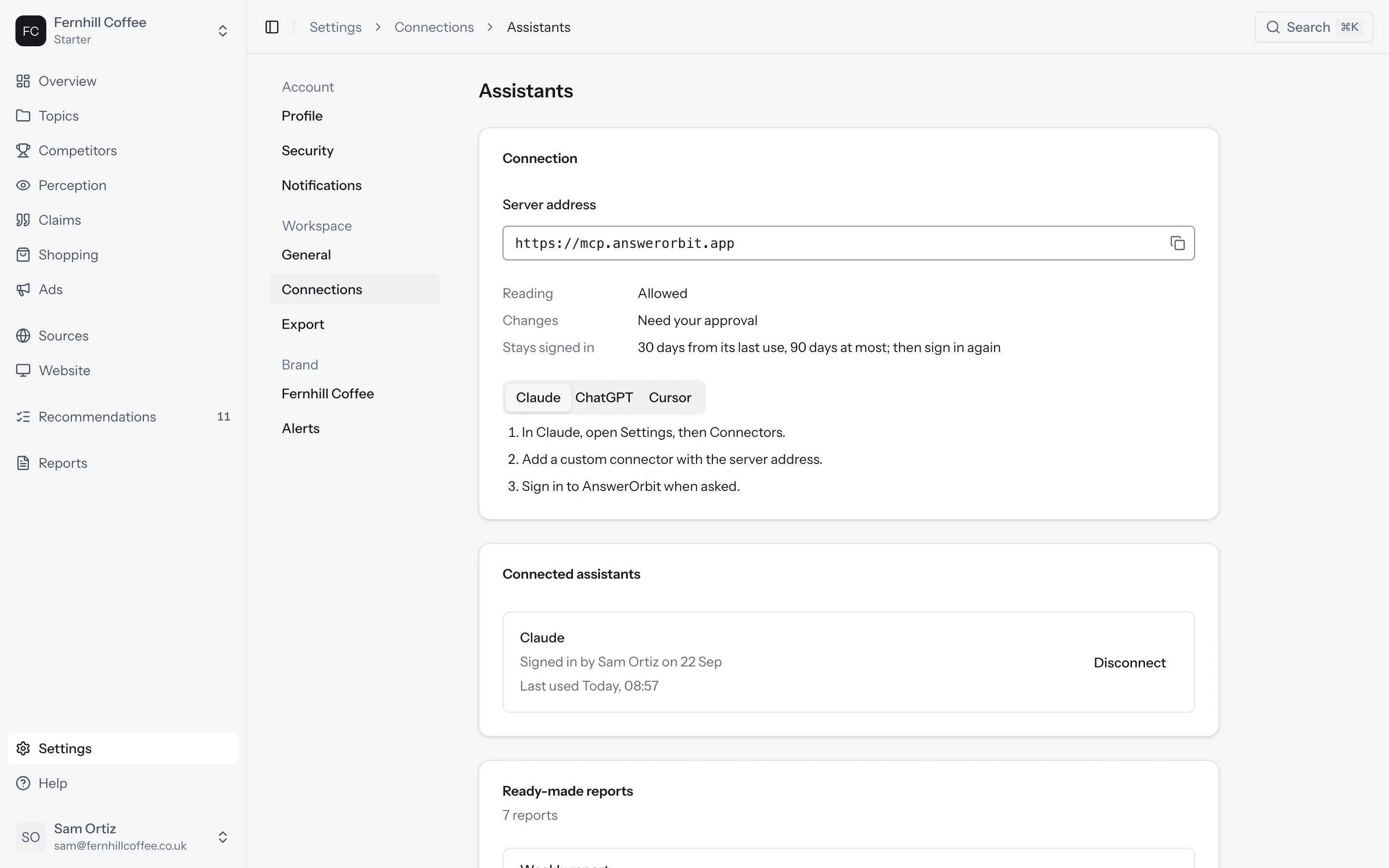
Go to Settings, then Connections, and open Assistants. At the top you'll see the Server address. Copy it. You'll paste it into your assistant in the next step.
Add it to your assistant
Claude
- In Claude, open Settings, then Connectors.
- Add a custom connector and paste the server address.
- Sign in to AnswerOrbit when Claude asks you to.
ChatGPT
- In ChatGPT, open Settings, then Connectors.
- Create a connector and paste the server address.
- Sign in to AnswerOrbit when ChatGPT asks you to.
Cursor
- In Cursor, open Settings, then MCP.
- Add a server and paste the server address.
- Sign in to AnswerOrbit when Cursor asks you to.
Choose what it can read
When you sign in, you'll see a page asking you to let your assistant read your numbers. Tick the brands it may read and click Allow. You have to pick at least one.
Your assistant signs in as you, so it can never see more than you can. It only reads the brands you ticked.
Once it's connected, you should see it under Connected assistants on the Assistants page, with who signed it in and when it was last used.
What it can do
Your assistant can read your brands, their topics and their numbers whenever you ask. That covers visibility, share of voice, position and citations over the last 7, 28 or 90 days, for the whole brand or split by topic, prompt, platform, market, audience, tag or competitor. Each number comes with how many answers it's based on, the period before, and whether the change was marked.
It can also suggest new prompts, up to 20 at a time for one topic. It can't add them itself. A suggestion waits on the Assistants page with a Waiting for your approval badge until someone on your team who can edit prompts adds the prompts or clicks Decline.
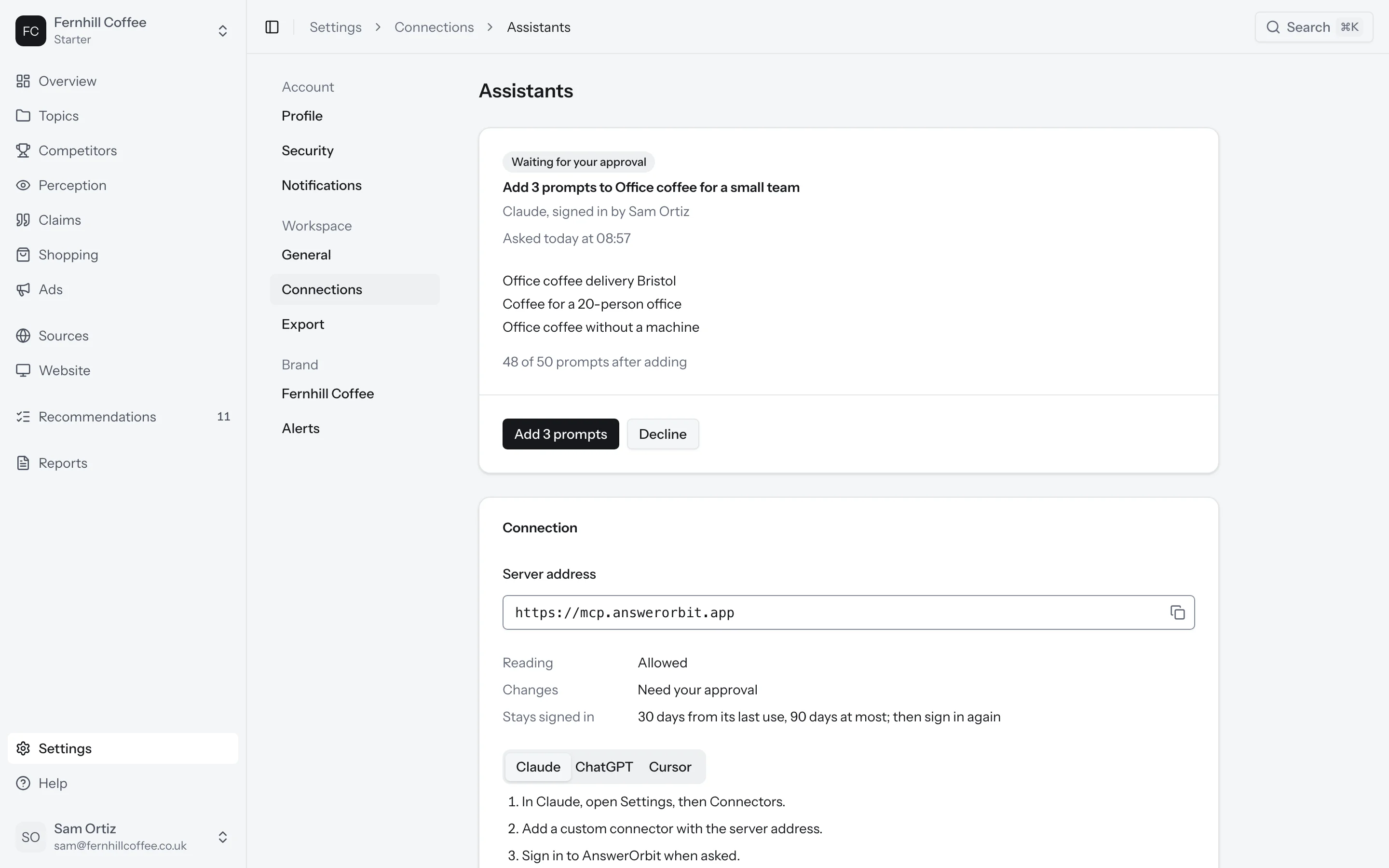
If adding the prompts would take you past your plan, you'll need to archive some prompts first or upgrade.
If you're on a client seat at an agency, your assistant can read your brand's numbers but can't suggest prompts.
How long it stays signed in
Your assistant stays signed in for 30 days after you last used it, and for 90 days at most. After that it asks you to sign in again.
To disconnect it sooner, click Disconnect next to it on the Assistants page. It can't read anything or suggest changes until someone signs it in again.
Ready-made reports
Your assistant offers these as prompts you can pick, so you don't have to write the question yourself:
| Weekly report | Visibility, share of voice, position and citations, this week against last |
|---|---|
| Competitor movers | The competitors whose visibility moved most |
| Platform scorecard | Each platform's visibility and citations |
| Topic grid | Visibility for each topic on each platform |
| Prompt set grade | Each prompt's demand and the answers it gets |
| Source audit | The sources used and cited, and the brands they name |
| Campaign before and after | Visibility before and after a date you choose |
What's next?
- Learn what each number means in What the numbers mean
- Pull your numbers into your own tools with the API