Website and AI traffic
See which AI bots can read your site, which ones visit, which pages they can't read, and the visitors AI assistants send you.
AI platforms can only recommend what they can read. Website shows you whether their bots are allowed on your site, which ones visit, what they see on your pages, and how many people AI assistants send your way.
Go to Website in the sidebar. There are four tabs: Audit, Pages, Bot visits and AI traffic.
Which bots are allowed in
Your site's robots.txt file tells bots which pages they may read. The Audit tab reads it and shows, for each of the 42 AI bots we know from 25 companies, whether it's Allowed, Partly allowed or Blocked, and whether its own rule or your file's general rule decides it.
Each bot is listed with its purpose. Training bots collect pages to train AI models. Search bots read pages so a platform can find them and cite them in answers. Bots marked fetching for a user read a page because someone asked an assistant to look at it.
Blocking a training bot keeps your pages out of a model's training. Blocking a search bot can keep them out of that platform's answers. Check you're blocking the one you mean to.
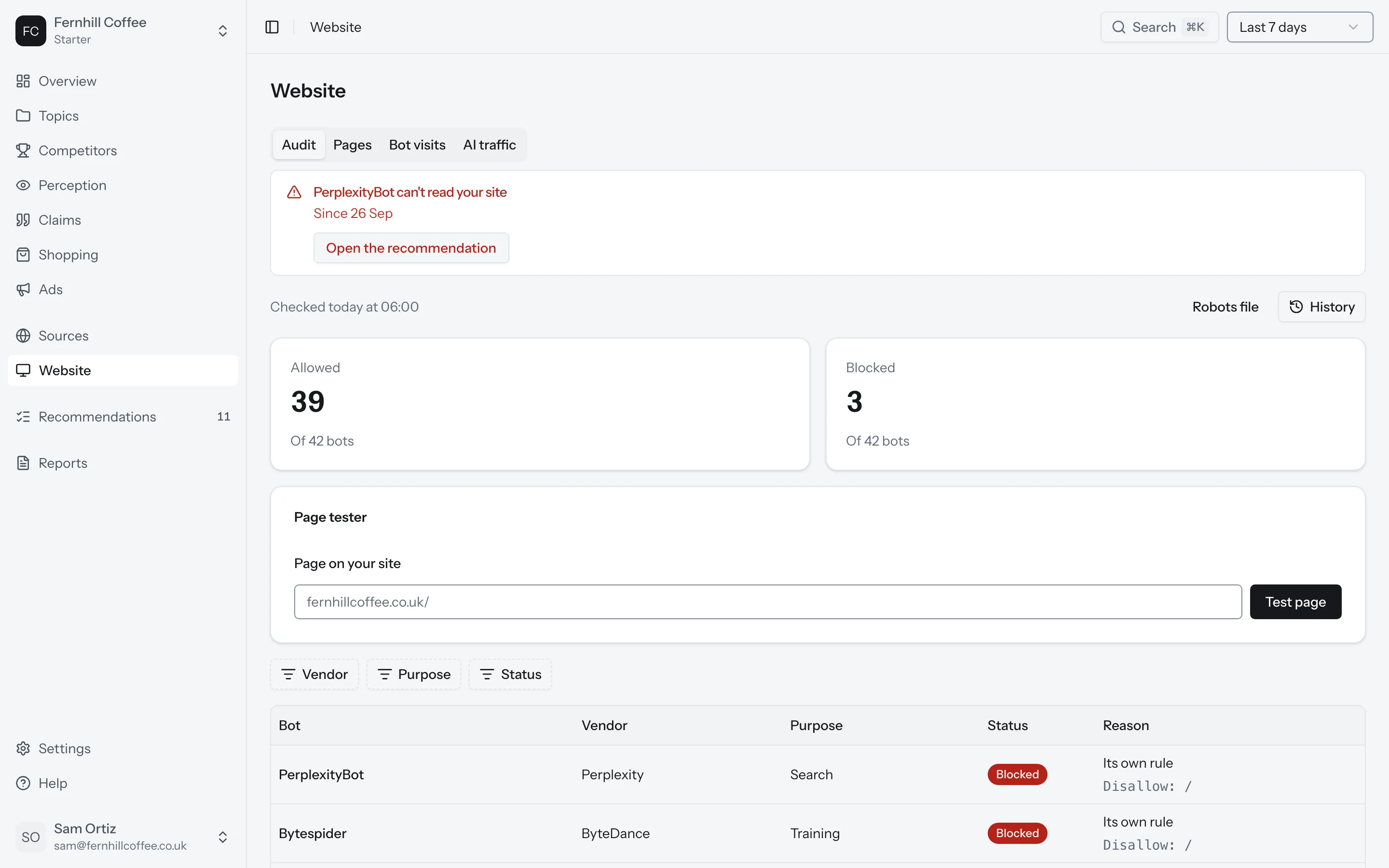
We read your robots.txt every day. Changed it and don't want to wait? Click Check now. If a bot that could read your site is now blocked, we'll email you.
Test a page
Want to know whether a single page is open to bots? Enter its address in the Page tester and click Test page. You should see how many of the bots may read it.
History
Every version of your robots.txt we've read is kept in History, with the lines added and removed each time. If a bot was blocked last week and not before, this is where you'll find out which change did it.
What bots see on your pages
A page can show people text that a bot never reads, because a script writes it after the page opens, or because it's behind a tab. Bots read the HTML your server sends, so they miss any text that isn't in it.
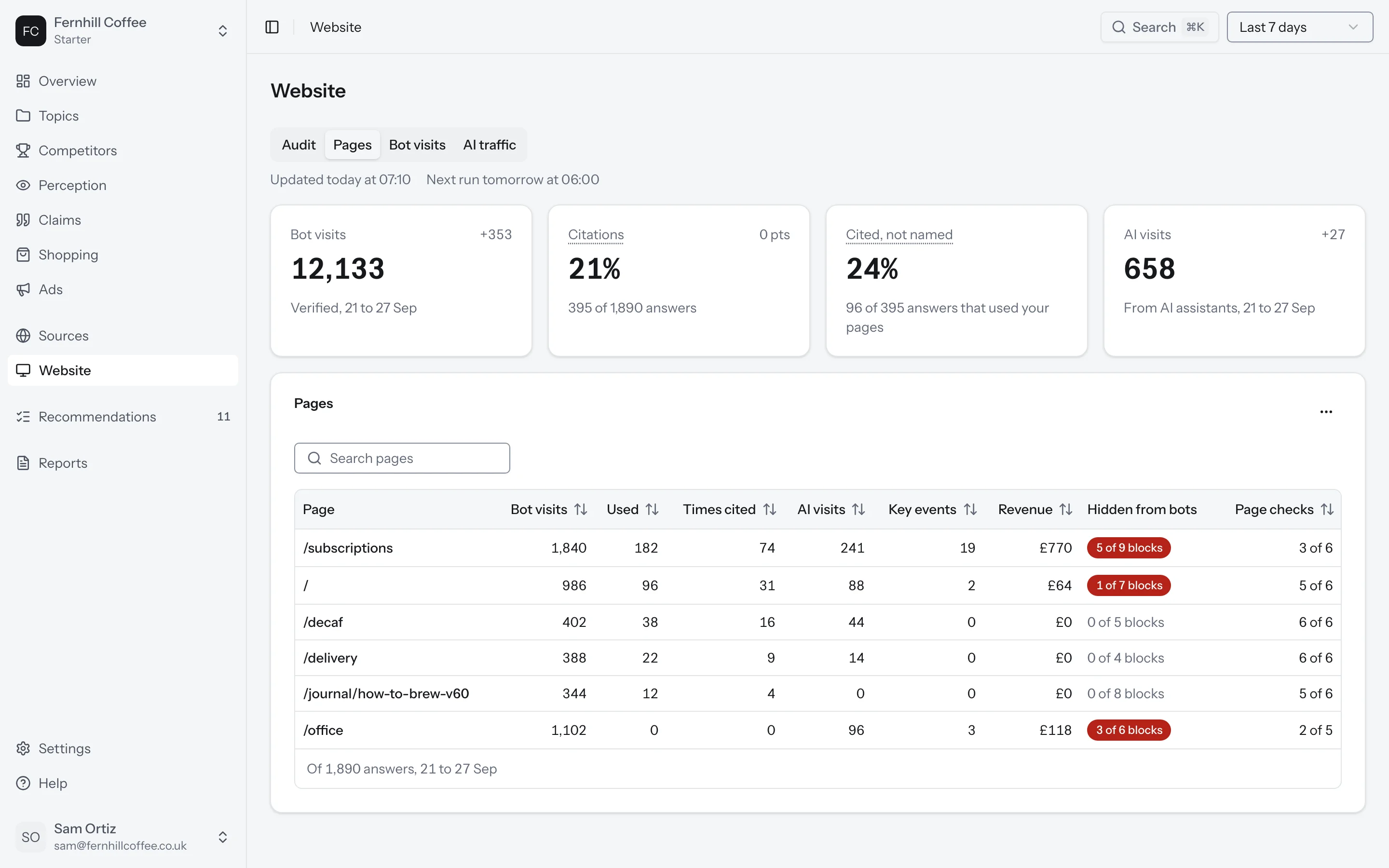
The Pages tab lists your site's pages with their bot visits, how often answers used and cited them, their AI visits from Google Analytics, and how many page checks they pass.
Open a page to see it side by side: What a person sees and What a bot reads. Blocks that bots miss are marked Hidden from bots, each with why it's hidden and how to fix it. For text a script loads, the fix is to put it in the page's HTML.
You'll also see the page's health on a phone, from how quickly its main content shows to how much it weighs, banded Good, Needs work or Poor by Google's Core Web Vitals thresholds.
Which bots visit
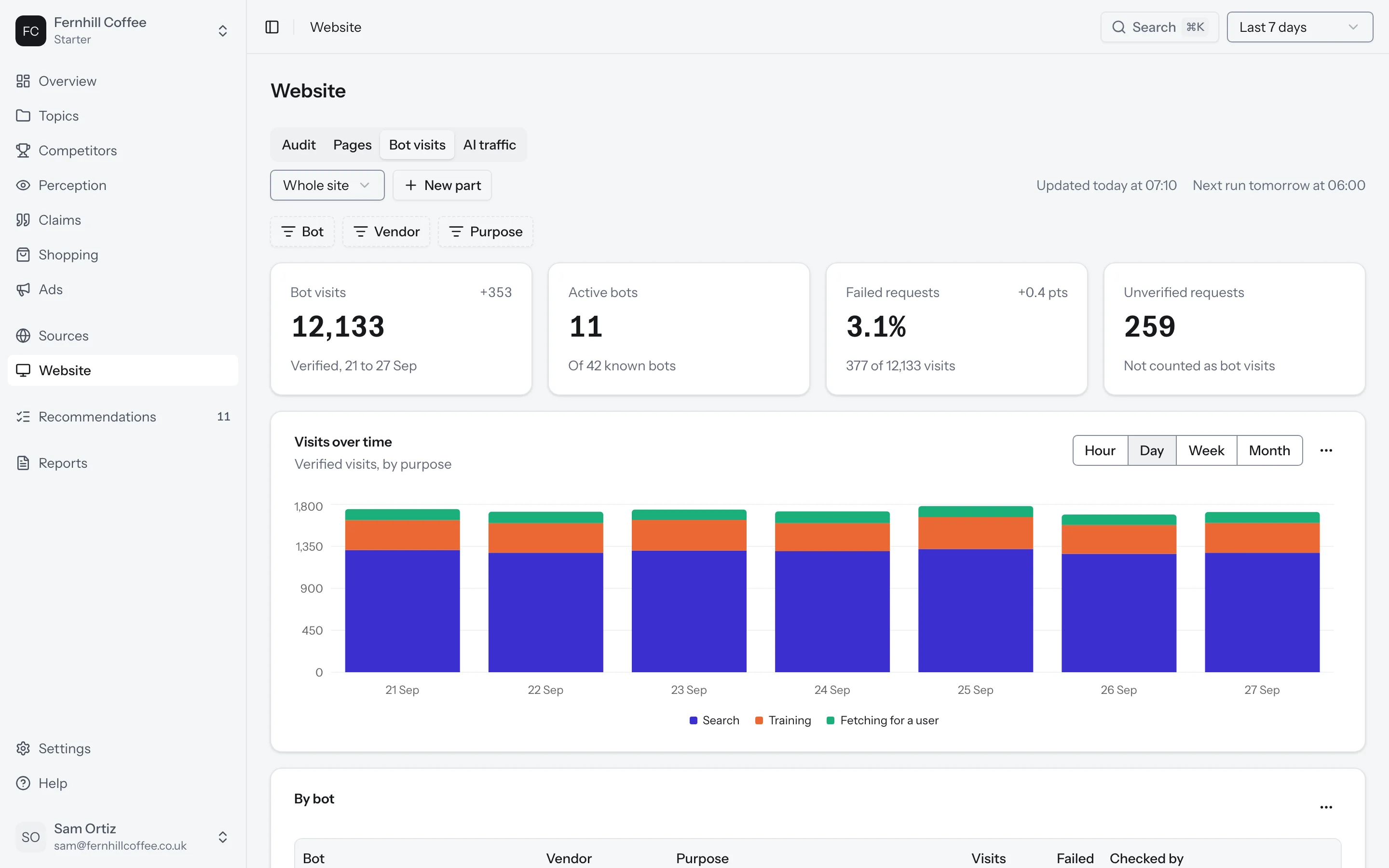
The Bot visits tab shows the AI bots that visited your site, which pages they read and which requests failed. To see it, connect your server logs.
Connect your server logs
Go to Settings, open Connections and choose Server logs. Pick where your site is hosted. You can connect Cloudflare, Vercel, Amazon CloudFront, Google Cloud, Akamai, Fastly, Netlify or WordPress, send us your requests yourself through a webhook, or upload an access log.
Each host has its own steps on screen. For WordPress, for example, you download our plugin, install it, paste your site key into its settings and click Check connection.
Some hosts have limits worth knowing about. Vercel's Log Drains need a Pro or Enterprise plan, and Netlify's need an Enterprise plan. Cloudflare's free plan caps a Worker's requests each day. CloudFront delivers its logs up to an hour late, so your bot visits arrive late too.
If you're not an admin on your host, you can send the steps by email to someone who is.
Which visits count
Anyone can give their bot the name of a known AI bot, so we check every request before we count it. A bot's visit counts when its address is on the list its company publishes, or when its address looks up to the company's own host name. For bots whose company publishes neither, we judge by how they behave. Requests that fail the check are shown as Unverified requests and don't count as bot visits.
We count up to 40,000 bot visits a month for each brand. If you reach that, we stop counting until the next month and show you when it starts again.
The visitors AI sends you
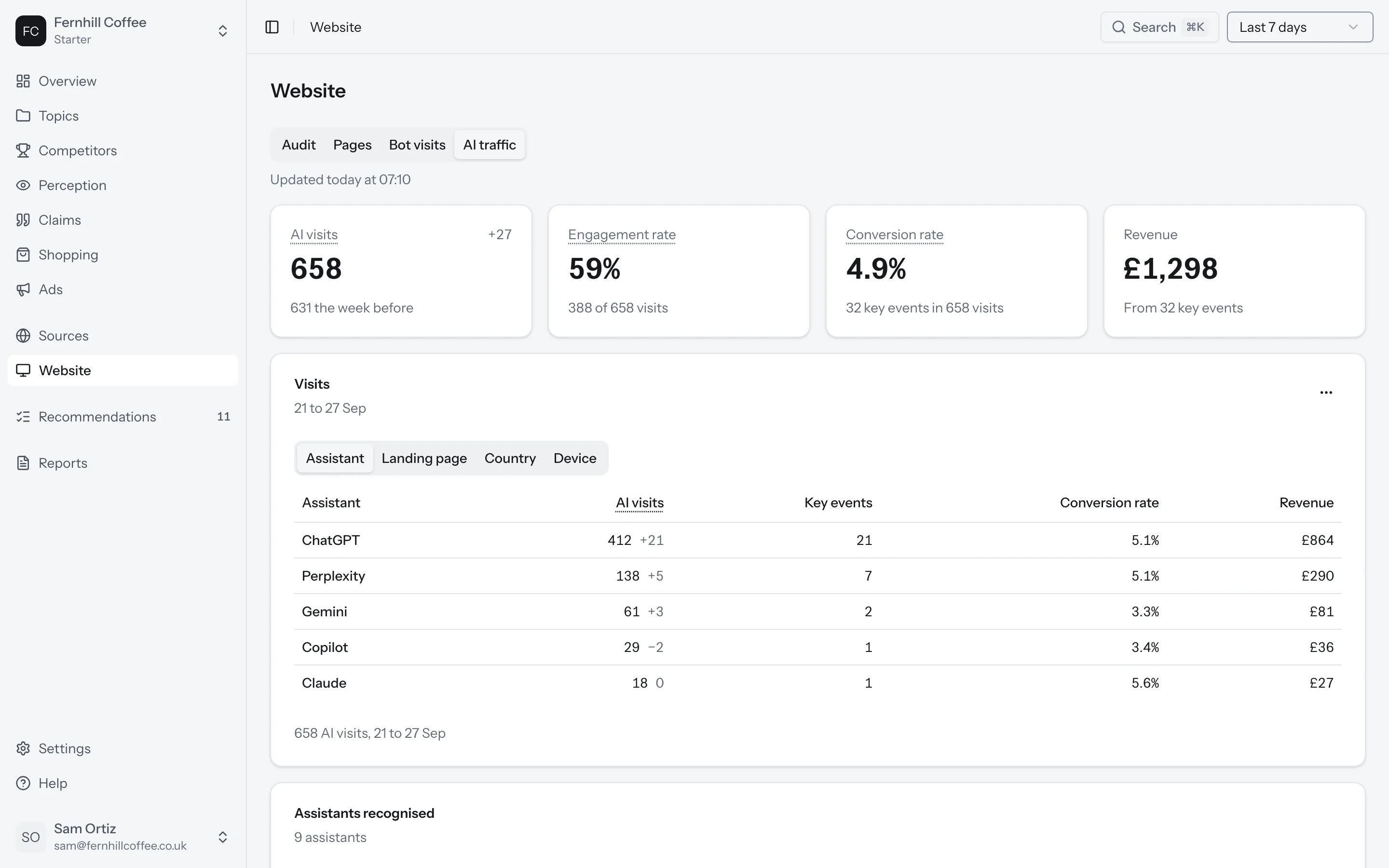
The AI traffic tab shows the people AI assistants sent to your site, from Google Analytics. You'll see your AI visits against the week before, broken down by assistant, landing page, country and device.
If you've set up key events in Google Analytics, you'll also see an engagement rate, a conversion rate and revenue. A visit counts as engaged when it lasted over 10 seconds, saw two pages or had a key event.
To see it, click Connect Google Analytics and sign in with the Google account that can read your property. You can also connect it from Settings, under Connections.
What's next?
- See which pages the AI platforms used in their answers in Sources
- Find out how we read each platform in How we count