Clients
Run your clients' brands from one account, share your prompts between them, and give each client a seat of their own.
Do you track AI visibility for several clients? On an agency plan, each client gets their own brands, and your plan's prompts are shared between them. Your clients can sign in to see their own numbers and reports, and nothing else.
How many client brands, prompts and client seats you get depends on your plan. You can compare the agency plans on our pricing page.
Add a client
Go to Clients in the sidebar and click Add client. Enter the client's name and website, and choose how many of your prompts the client gets.
We then read the client's website and take you through the same steps as setting up your own brand: what we found, competitors, and topics and prompts.
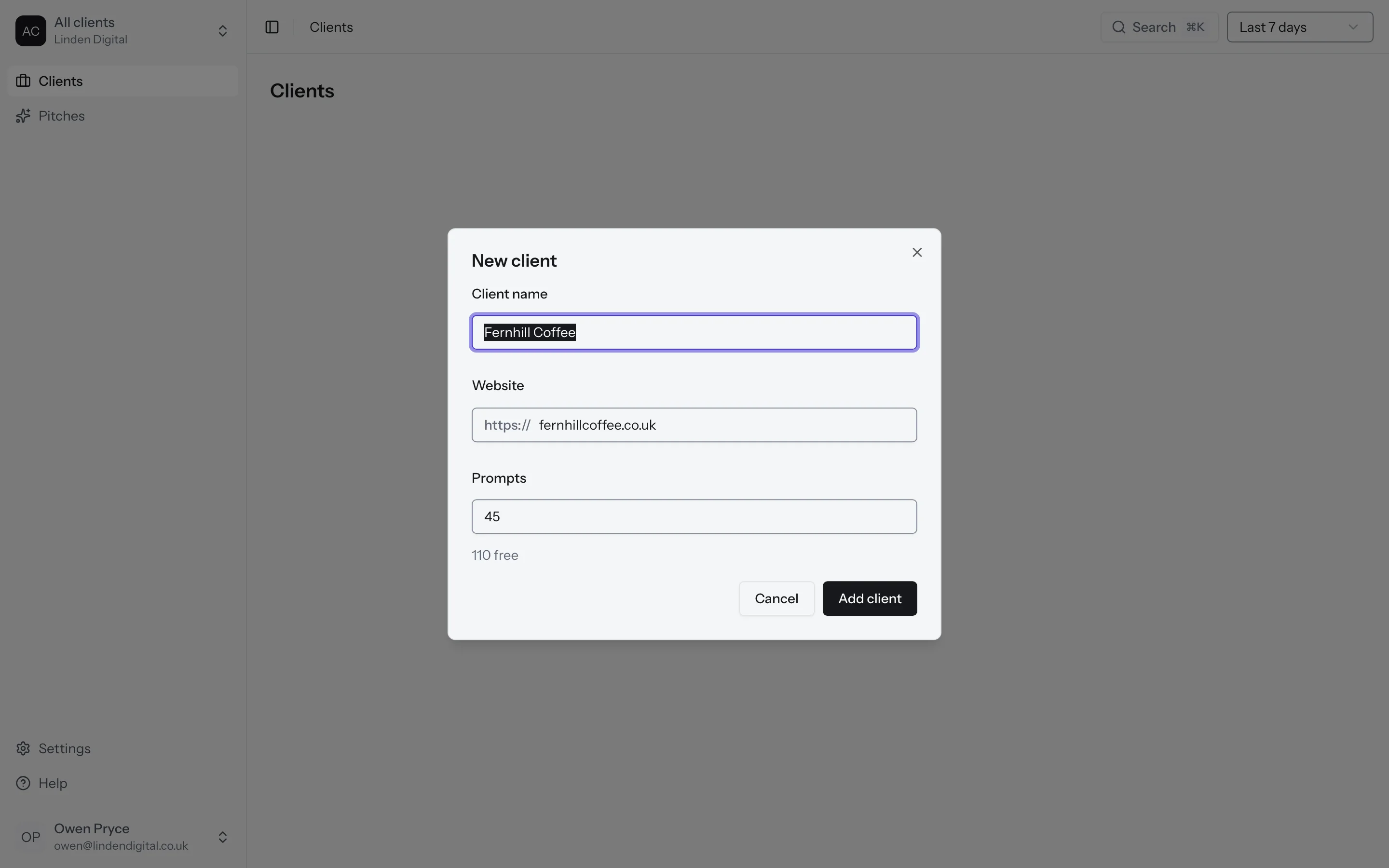
Once you've used all the client brands your plan holds, you'll need to upgrade before you can add another.
Your clients at a glance
The Clients page lists every client with their visibility, how many brands they have, anything that needs your attention, and when their next client report goes out.
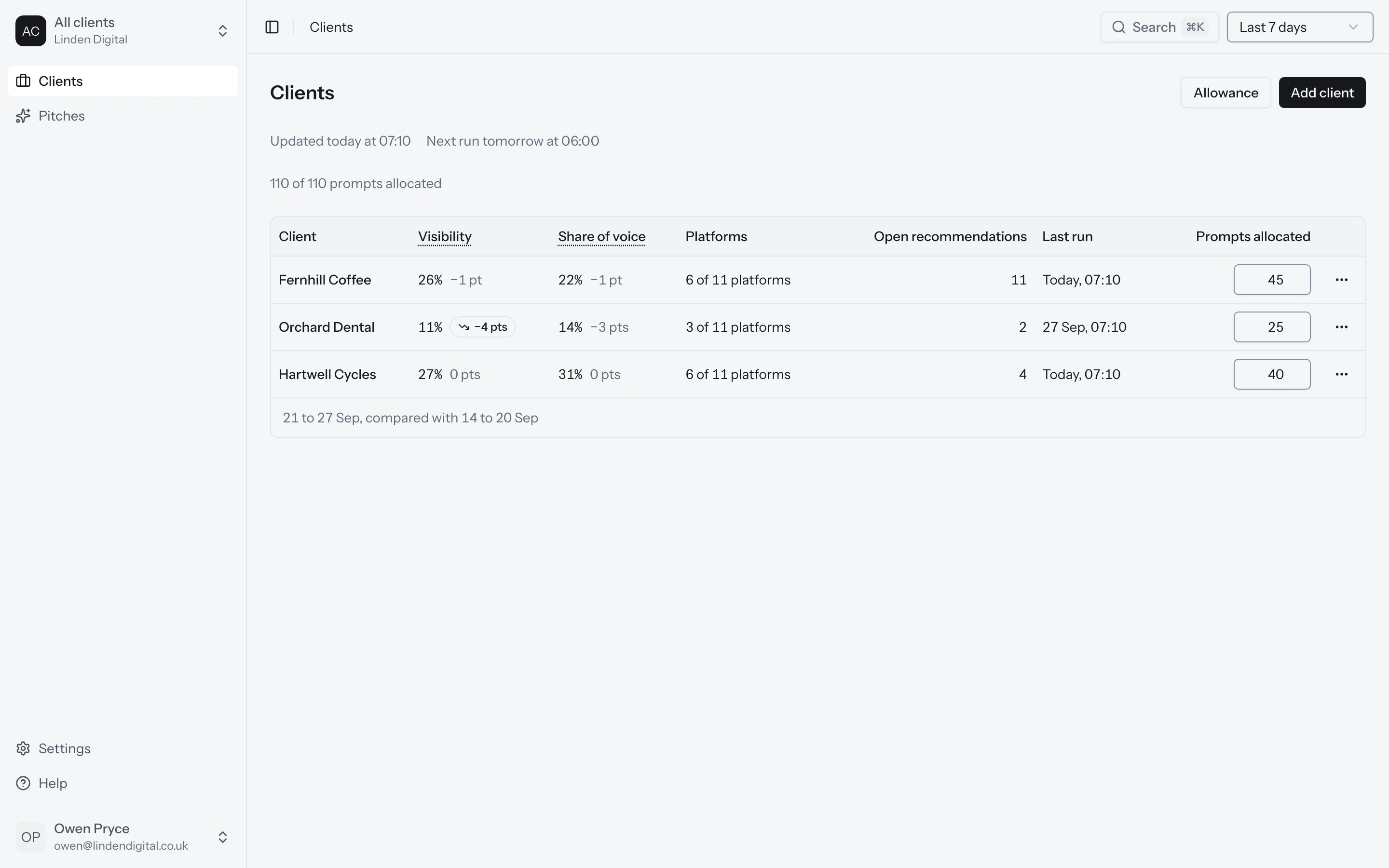
Click a client to open it. You'll see the client's numbers for the week, their brands, their client seats and their client report. A client's numbers cover all of its brands together.
Share your prompts between clients
Your plan's prompts are your allowance. You decide how many each client gets. A client with an allocation can track up to that many prompts. Prompts you haven't given to anyone are free, and any client without an allocation can use them.
To change who gets what, go to Clients, open Allowance and click Move allowance. Choose where the prompts come from, where they go and how many to move. You'll see each client's answers a week before and after, so you know what the change means before you save it.
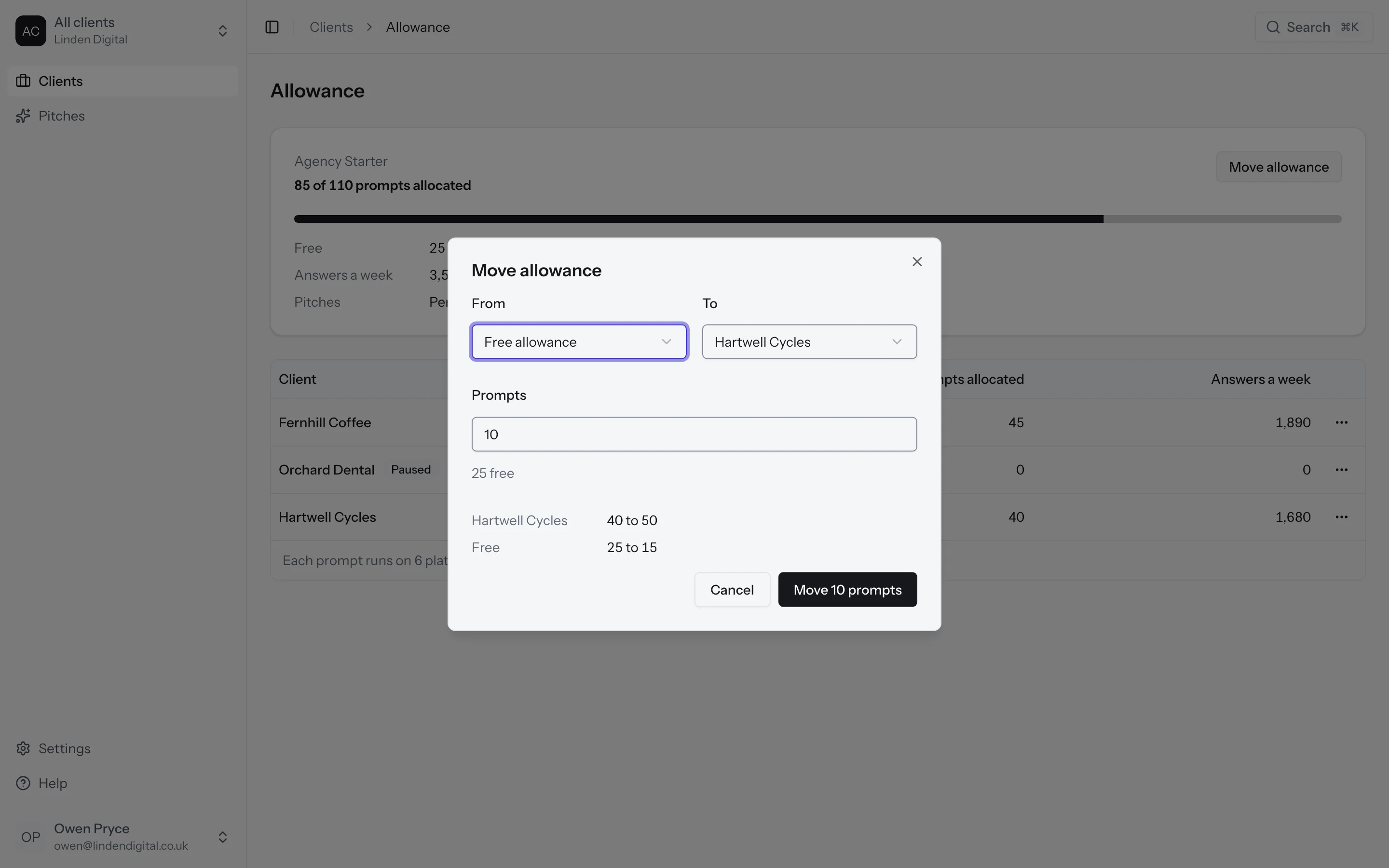
You can't hand out more prompts than your plan holds. If every prompt is already given out, take some from another client first, or upgrade.
Choose each client's platforms
Each client can track a different set of AI platforms. Open the client and choose its platforms. Every prompt runs once a day on each platform you pick, so fewer platforms means fewer answers a week.
Pause a client
Is a client taking a break? Open the client and pause it. While a client is paused, we don't collect any answers for it, and its prompts go back into your allowance for other clients to use.
The client's numbers, history and allocation stay. When you resume the client, it takes its prompts back. The days it was paused stay empty, and we can't fill them in later.
Give a client a seat
A client seat lets someone at your client sign in to AnswerOrbit. They only see that client's brands and reports. They can't see your other clients, your allowance or your pitches.
To add one, open the client, go to Client seats and click Invite. Enter the person's name and email address. They'll get an email inviting them in.
Send client reports
Each client gets a client report. Open the client to choose how often it goes out, on which day, and who it's sent to. See Reports for what's in it.
Want the reports to carry your agency's name and logo? Go to Settings and open White label. Set your agency name, logo and reply address there. A single client can also have its own, which takes the place of yours.
Delete a client
Open the client and scroll down to Danger zone, then click Delete client. You'll be asked to type the client's name to confirm.
The client's seats lose access, and the client brand frees up on your plan. This can't be undone.
What's next?
- Win new clients with a pitch
- See what goes into a client report